

Adding a new external connection
External connections represent physical (L1) ports in the network fabric that act as uplinks outside of the network fabric. By configuring an external connection for a Logical Network the VLANs/VNIs configured will be terminated on the respective external connection.
To configure an external connection:
- Log into the Admin UI, click on
Fabrics, click on the fabric you wish to configure and click onExternal Connections - Click
Add external connection

- Fill in a name and a label and click
Add external connection - Click
editon the newly created external connection - Go to the
Network devicestab - Click
Add external connection network device

- Select the network device ID and input the ports that will be used for external connections on that switch and click
Add external connection network device
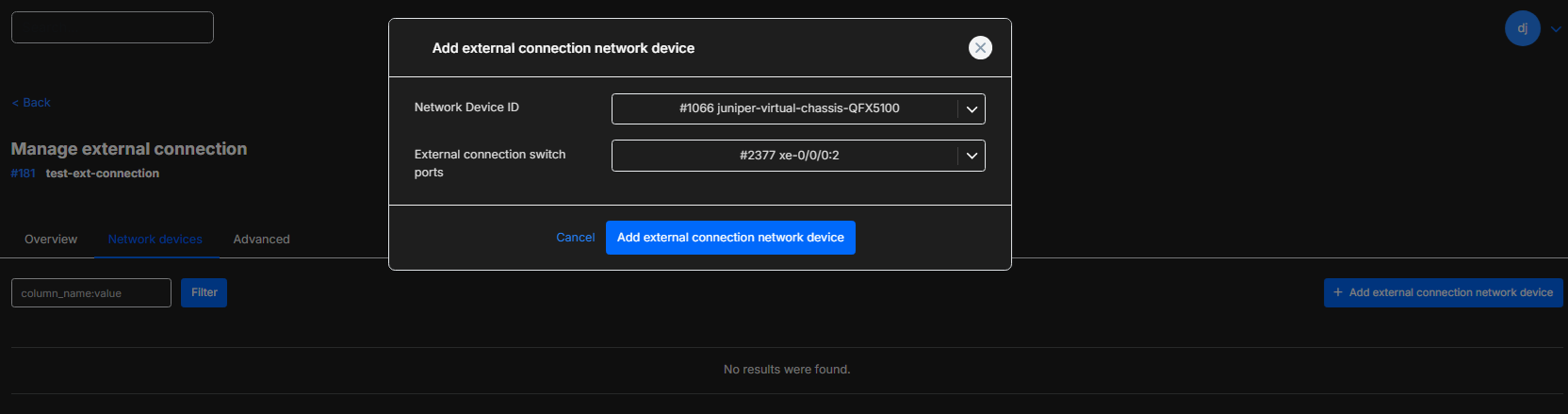
Adding an external connection to an Infrastructure
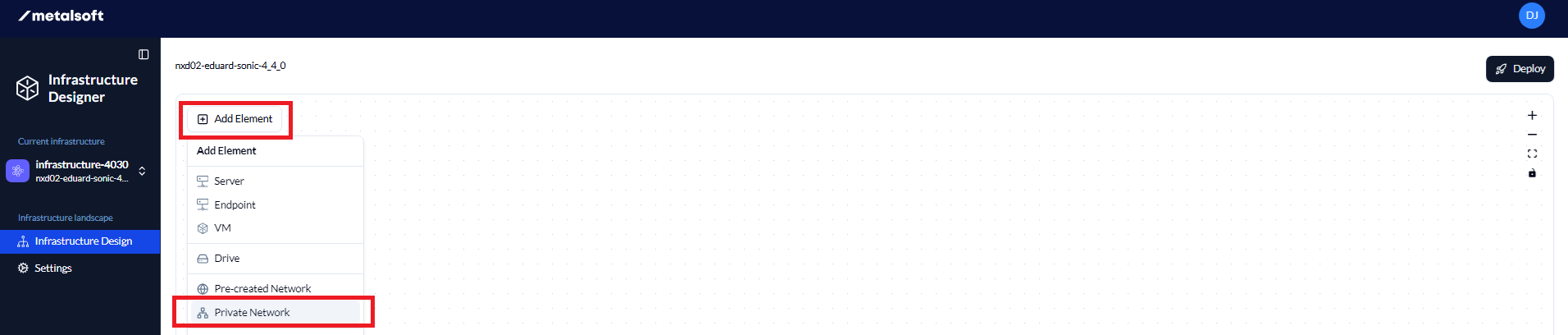
Section titled “Adding an external connection to an Infrastructure”- Log into the Consumer UI by clicking on your initials in the top right and selecting
Infrastructure designer - Click on
Add elementand select the network you wish to use.
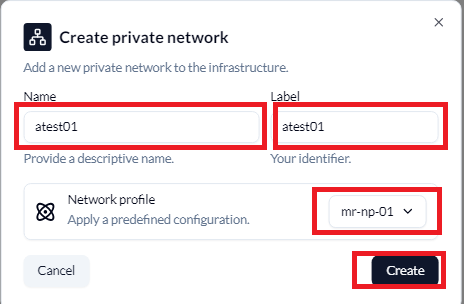
- If selecting a Private network, fill in the Name, the Label and select the Network profile and click
Create
- Click on the network on the diagram, click on
External Connectionsand click onAttach Connection, select the External Connection and click onAttach Connection
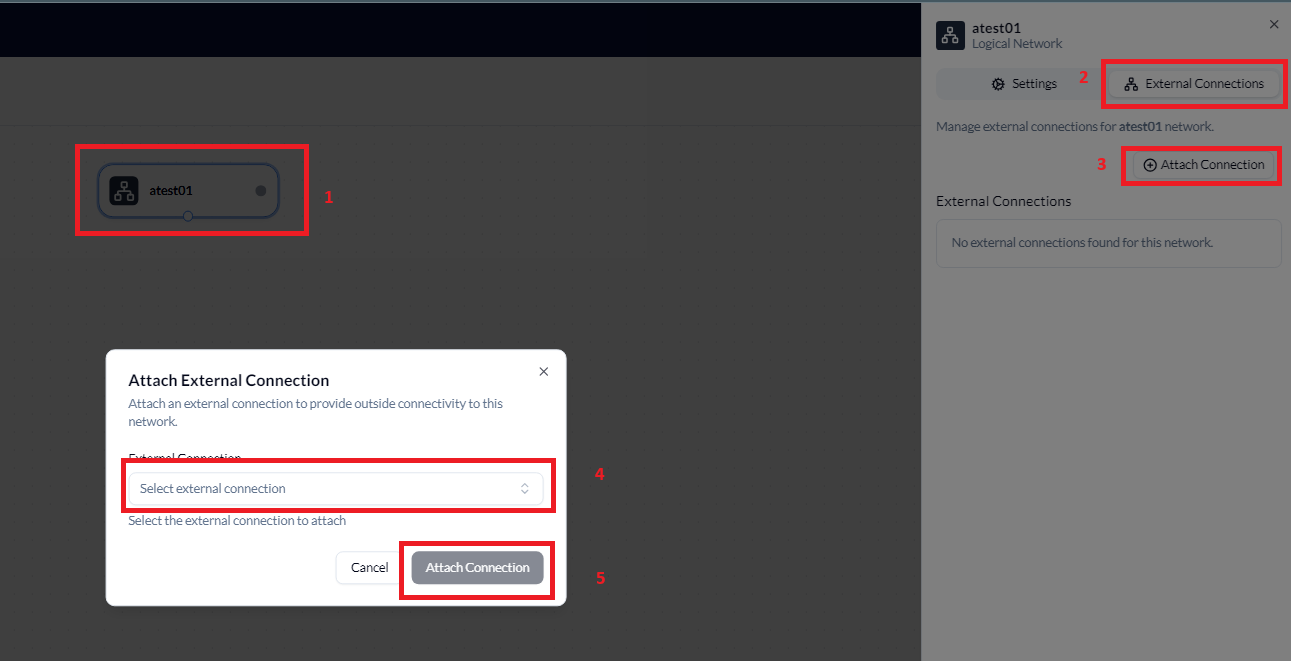
- The External connection will now show
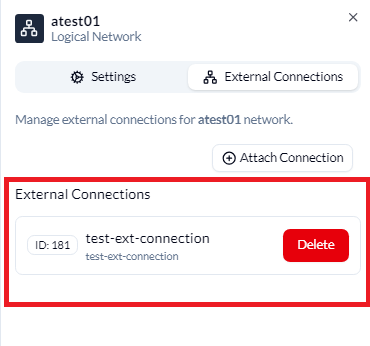
Once complete, the infrastructure can now be deployed or the External connection can now be deleted.
Managing external connections via the API
Section titled “Managing external connections via the API”External connections have a full REST API with support for managing interfaces and logical network attachments.
Creating an external connection
Section titled “Creating an external connection”curl -X POST "https://<your-server>/api/v2/external-connections" \ -H "Content-Type: application/json" \ -d '{ "label": "ext-conn-01", "name": "Uplink to WAN router", "fabricId": 1, "externalConnectionInterfaces": [ {"networkDeviceInterfaceId": 100} ] }'Listing external connections
Section titled “Listing external connections”curl "https://<your-server>/api/v2/external-connections"Managing interfaces
Section titled “Managing interfaces”# List interfaces for an external connectioncurl "https://<your-server>/api/v2/external-connections/{externalConnectionId}/interfaces"
# Add an interfacecurl -X POST "https://<your-server>/api/v2/external-connections/{externalConnectionId}/interfaces" \ -H "Content-Type: application/json" \ -d '{"networkDeviceInterfaceId": 101}'
# Remove an interfacecurl -X DELETE "https://<your-server>/api/v2/external-connections/{externalConnectionId}/interfaces/{interfaceId}"Attaching a logical network
Section titled “Attaching a logical network”External connections can be linked to logical networks. Each attachment is tracked with its own status (pending_activation, active, etc.):
# Attach a logical networkcurl -X POST "https://<your-server>/api/v2/external-connections/{externalConnectionId}/logical-networks" \  -H "Content-Type: application/json" \  -d '{"logicalNetworkId": 10}'
# List attached logical networkscurl "https://<your-server>/api/v2/external-connections/{externalConnectionId}/logical-networks"
# Detach a logical network (from the logical network side)curl -X DELETE "https://<your-server>/api/v2/logical-networks/{logicalNetworkId}/external-connections/{externalConnectionId}"
Viewing external connections for a logical network
Section titled “Viewing external connections for a logical network”curl "https://<your-server>/api/v2/logical-networks/{logicalNetworkId}/external-connections"