

Servers overview
MetalSoft supports full lifecycle management of physical servers from Dell, HPE, Lenovo, and Supermicro.
Lifecycle stages
Section titled “Lifecycle stages”The following are the stages which a server goes through during its lifetime:
- Zero Touch Discovery The system detects new equipment on the network, assigns IPs to them, logs in, and configures the BMC users. It supports either factory passwords or pre-configured passwords for a given serial number.
- Registration (Enrollment) The system discovers hardware components, assigns server types to servers with identical configuration, discovers where each network link is connected to, in which switch and port, and discovers GPUs, etc. It configures the BMC, BIOS, and TPM chip. It also securely erases the drives during this process.
- Provisioning It configures the RAID, provisions the system, deploys the operating system, and configures the network and storage configuration of the OS to match the switch network configuration.
- Firmware upgrades It coordinates custom catalog-based firmware upgrades depending on the operating system being deployed, server type, and vendor.
- Cleanup/decommissioning When releasing a server back to the pool or decommissioning it, the system erases hard drives using the SED drive’s encryption key change facility, or by writing zeros to the drives if that is not available.
General guidelines when registering servers
Section titled “General guidelines when registering servers”When adding new equipment straight from the factory, the best option is to set up the zero touch provisioning process, since you configure it once and then reuse it without further input apart from racking and cabling the equipment. However, it is equally fine to add servers that already have a configured BMC IP, username, and password. The system will take the BIOS and other BMC configurations so that the final result is the same.
After the registration process has finished, the servers will be in “unavailable” state and will be powered off; the switch ports are also shut down. This represents a successful registration. When adding many servers, it is important to check their assigned server types.
Determining cabling and other hardware issues
Section titled “Determining cabling and other hardware issues”MetalSoft assigns server types automatically based on the total CPU core count, RAM quantity, GPU quantity (if any), and number of disks. Thus an M.40.256.12 will signify a server with a single CPU 40 threads (20 hyper-threaded cores), 256 GB of RAM, and 12 disks. An M.40.256.12.1G will also contain a GPU.
Note that the system will also append a v2, v3, v4… suffix to the server type if it detects a delta or other parameters such as a different number of NICs.
The system will also use LLDP and actively send packets through network links to the switch (from the server) to determine what switch port the server port is connected to. If the LLDP packets fail to arrive at the switch port, this results in a NIC port showing up as “not connected”, and the system assigns a v2 server type to an otherwise identical server. This makes it easy to spot cabling issues.
If all servers being registered in a batch are supposed to be the same, the server types should all be the same. Investigate all outliers and re-register them after you resolve the issue. This usually requires replacing a cable or re-seating a NIC card.
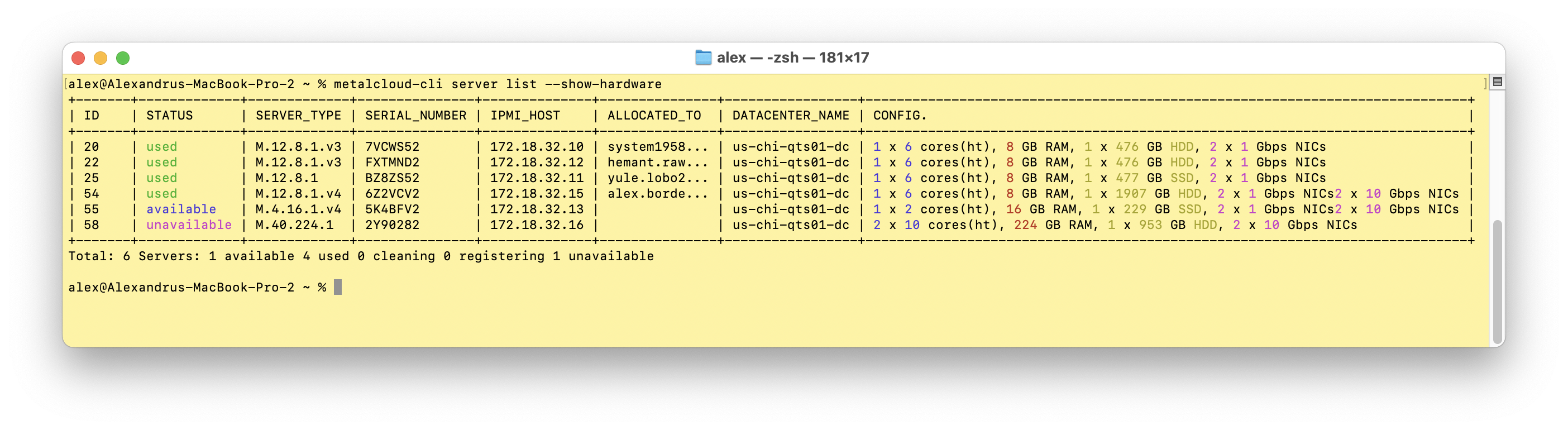
Use the CLI to more quickly spot differences between servers as well as cabling issues, especially if operating with more than a few servers.
For example, you can quickly detect differences in hardware by using the --show-hardware param with the server list command.
Registering servers already in production
Section titled “Registering servers already in production”The process of adding servers already in production is relatively different. Use the Add Server form as usual but select “Production (In use)”. Specify a landing infrastructure. The registration process starts the same way, except that the system collects as much information as possible via redfish and then sets the server as in-use in the respective infrastructure. Note that when the server is finally released, you often need a full registration if connection information is not available in redfish. You may also need to manually set the connection information if network changes are needed and the system could not detect the connections.
Troubleshooting a server stuck in the registration process
Section titled “Troubleshooting a server stuck in the registration process”Server registration process can take up to 30 minutes and can vary dramatically with hardware. On older hardware, the system might boot a utility operating system on the server rather than using the BMC.
If the process takes more than 1h, investigate the AFC graph by clicking on the graph link on the server overview page or by checking the Events section.
The most common issues are:
- Communication error between the Site Controller and the server, usually due to a network or firewall misconfiguration. Verify that all the Site Controller related firewall ports are open.
- A stuck BMC chip. This typically requires a hard reset by un-plugging the server completely from power, waiting a few minutes and plugging it back in.
- A stuck operation such as a job. Check the BMC of the server for stuck jobs and manually delete the job if possible and reboot the server. Sometimes it suffices to reboot the server to kickstart the job processing.