

Creating a logical network
Logical Networks are an abstract term that MetalSoft uses to represent a network to which Endpoints, Servers, VMs, or Clusters can be attached via Connections. These are sometimes referred to as “overlay,” but to avoid confusion with virtualization-level overlay networks (such as those created in VMware NSX-T or OVN), MetalSoft uses this more generic term.
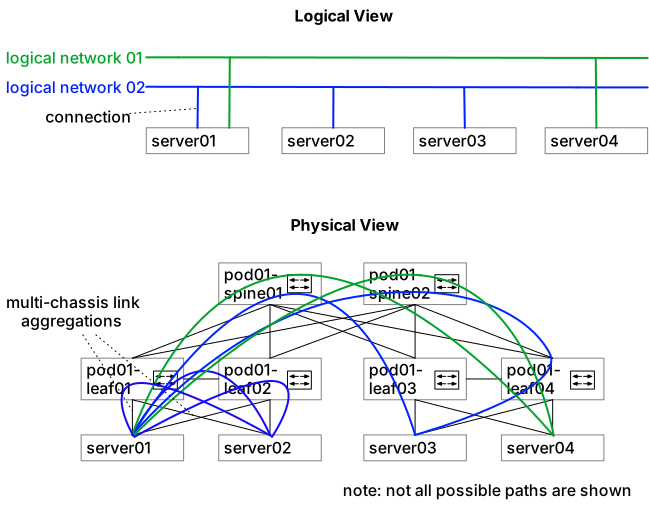
MetalSoft abstracts the “underlay” configuration and the physical configuration. In the picture above, a complex setup with multi-chassis port channels and potentially BGP sessions for EVPN signaling is deployed to carry the logical networks from one endpoint to another.
MetalSoft creates logical networks in two ways:
-
Pre-created by Admins
Admins typically use these for north-south “public” networks, such as the ones that provide tenants with access to the Internet and typically provide the default gateway. Depending on the configuration, MetalSoft can implement these as a common, shared L2 broadcast domain or a private L2 broadcast domain.
-
Created by consumers from Network Profiles
Consumers typically use these for east-west private networks that are isolated from other tenants. These networks are usually private to the respective Infrastructures in which they are created.
Creating a Logical Network
Section titled “Creating a Logical Network”To create a logical network for VLAN 100 with subnet 192.168.100.0/24, with 192.168.100.1 as gateway:
-
Enable the VLAN on the fabric
- Go to Fabric Manager → Fabrics → my fabric → Fabric Settings → VLAN Configuration.
- Ensure VLAN 100 is in the list in the VLAN Ranges field.
-
Add the subnet
- Go to Fabric Manager → Subnets (In-Band) → Add subnet
- Name it “In-band”
- Give it a label of “In-band”
- Select Scope Fabric
- Select the Fabric (Called “In-band” in the previous tutorial)
- Leave the Route domain empty
- Leave the parent subnet empty
- Subnet: Input 192.168.100.0/24
- Click Next
- Leave Is Pool unticked
- Input a default gateway: 192.168.100.1
- Click Add
-
Add the Logical Network
- Go to Fabric Manager → Fabrics → my fabric → Logical Networks → Add Public Logical Network
- Give it a name such as VLAN-100 and a label such as vlan-100, leave Route domain and MTU as empty, and click Next
- Select VLAN
- Select Allocation Strategy: manual
- Input the VLAN: 100 and click Next
- Click on Enable IPv4 Subnet Allocation
- Select Strategy: manual
- Select the subnet pool: In-band
- Select the Gateway Placement as “External” and click Next
- Click Add
Note that you can see all logical networks, both private and pre-created, if you go to the “logical networks” tab, select “All”, and then click Filter.
Options
Section titled “Options”The following options are available for both logical networks and network profiles and they depend on the Fabric type:
- Ethernet Fabrics:
- Kind:
VLAN- This will use VLAN-backed logical networks.VXLAN- This will use EVPN VXLAN-backed logical networks.
- Allocation strategy
- Manual - MetalSoft uses the specified VLAN.
- Auto:
- Scope Fabric - MetalSoft uses the first available VLAN from the range specified in the VLAN Ranges of the Fabric Configuration. The VLANs are global.
- Scope Switch - Not currently available
- IPv4/IPv6 Subnet Allocation
- Enabled - Enable/disable
- Strategy:
- Manual - MetalSoft allocates a single IP from the selected subnet to each endpoint, server, or VM connected to the logical network.
- Subnet - The subnet from which to allocate the IP. You can use only subnets of type “Single”.
- Automatic - MetalSoft allocates a smaller subnet from the selected subnet for each infrastructure in which the logical network is deployed. From that subnet, MetalSoft allocates individual IPs to the hosts connected to the logical network.
- Subnet pools - The subnet from which to allocate the IP. You can use only subnets of type “Pool”.
- Prefix length - The size of the subnet that MetalSoft allocates for each Infrastructure connected to this logical network.
- Gateway placement:
- Default - MetalSoft places the gateway on the leaf switches in a redundant manner, either as Symmetric IRB, VRRP, etc. (if supported by the driver).
- External - MetalSoft does not provision a gateway. The network is external to the Fabric (such as on a firewall).
- Manual - MetalSoft allocates a single IP from the selected subnet to each endpoint, server, or VM connected to the logical network.
- MTU - Maximum Transmission Unit. If not set, it defaults to 1500. If a connection object for a system connected to this logical network sets a different value, MetalSoft uses the highest value.
- Kind:
- Infiniband Fabrics
- Allocation strategy
- Manual - MetalSoft uses the specified VLAN.
- Auto - MetalSoft uses one of the PKEYs specified on the fabric settings, in order.
- Allocation strategy
Managing logical networks via the API
Section titled “Managing logical networks via the API”Creating a logical network
Section titled “Creating a logical network”curl -X POST "https://<your-server>/api/v2/logical-networks" \ -H "Content-Type: application/json" \ -H "Authorization: Bearer <API_KEY>" \ -d '{ "fabricId": 1, "name": "VLAN-100", "label": "vlan-100", "kind": "vlan", "vlan": { "allocationStrategy": "manual", "vlanId": 100 }, "ipv4": { "allocationStrategy": "manual", "subnetPoolId": 5, "gatewayPlacement": "external" }, "mtu": 9000 }'Creating a logical network from a profile
Section titled “Creating a logical network from a profile”curl -X POST "https://<your-server>/api/v2/logical-networks/actions/create-from-profile" \ -H "Content-Type: application/json" \ -H "Authorization: Bearer <API_KEY>" \ -d '{ "logicalNetworkProfileId": 1, "infrastructureId": 10, "name": "tenant-private-net", "label": "tenant-private-net" }'Listing logical networks
Section titled “Listing logical networks”curl "https://<your-server>/api/v2/logical-networks" \ -H "Authorization: Bearer <API_KEY>"Getting a specific logical network
Section titled “Getting a specific logical network”curl "https://<your-server>/api/v2/logical-networks/{logicalNetworkId}" \ -H "Authorization: Bearer <API_KEY>"Deleting a logical network
Section titled “Deleting a logical network”curl -X DELETE "https://<your-server>/api/v2/logical-networks/{logicalNetworkId}" \ -H "Authorization: Bearer <API_KEY>"