

Configure SAML for Okta
This guide divides the whole process into two steps:
- Configuring Okta.
- Configuring the MetalSoft app to use Okta, as configured in step 1, “Configuring Okta.”
Step 1. Configuring Okta
Section titled “Step 1. Configuring Okta”- Create an app in Okta
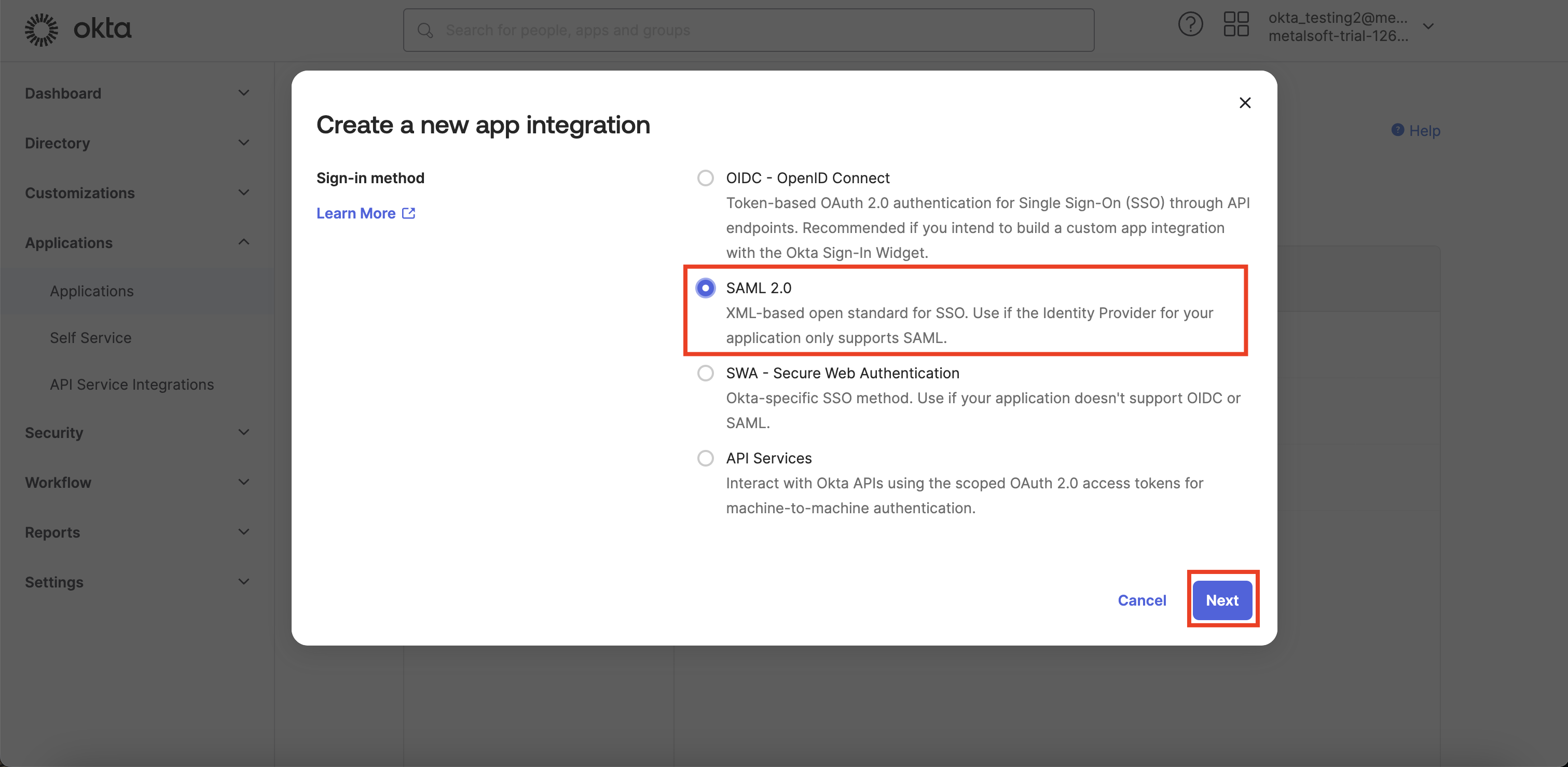
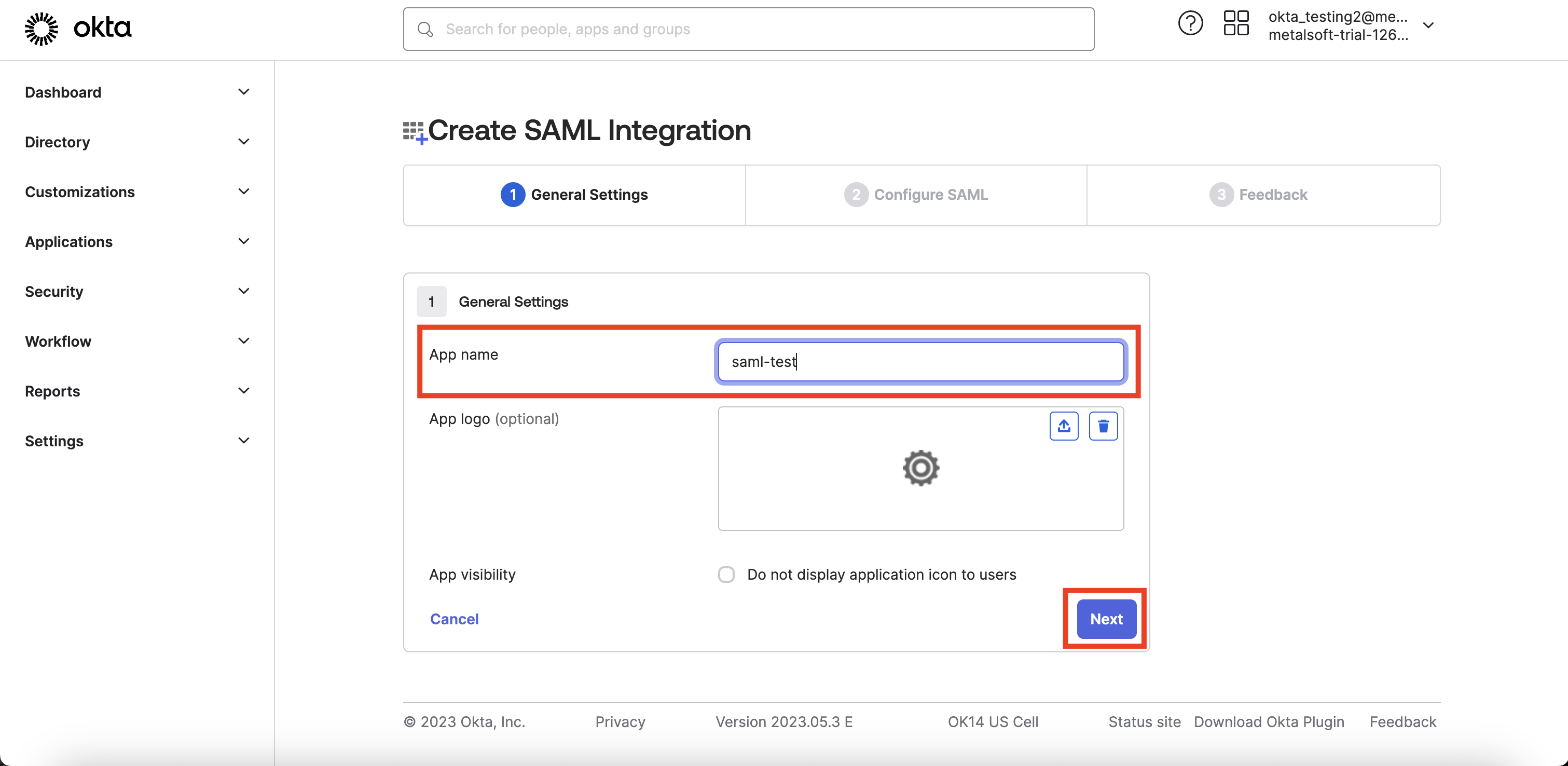
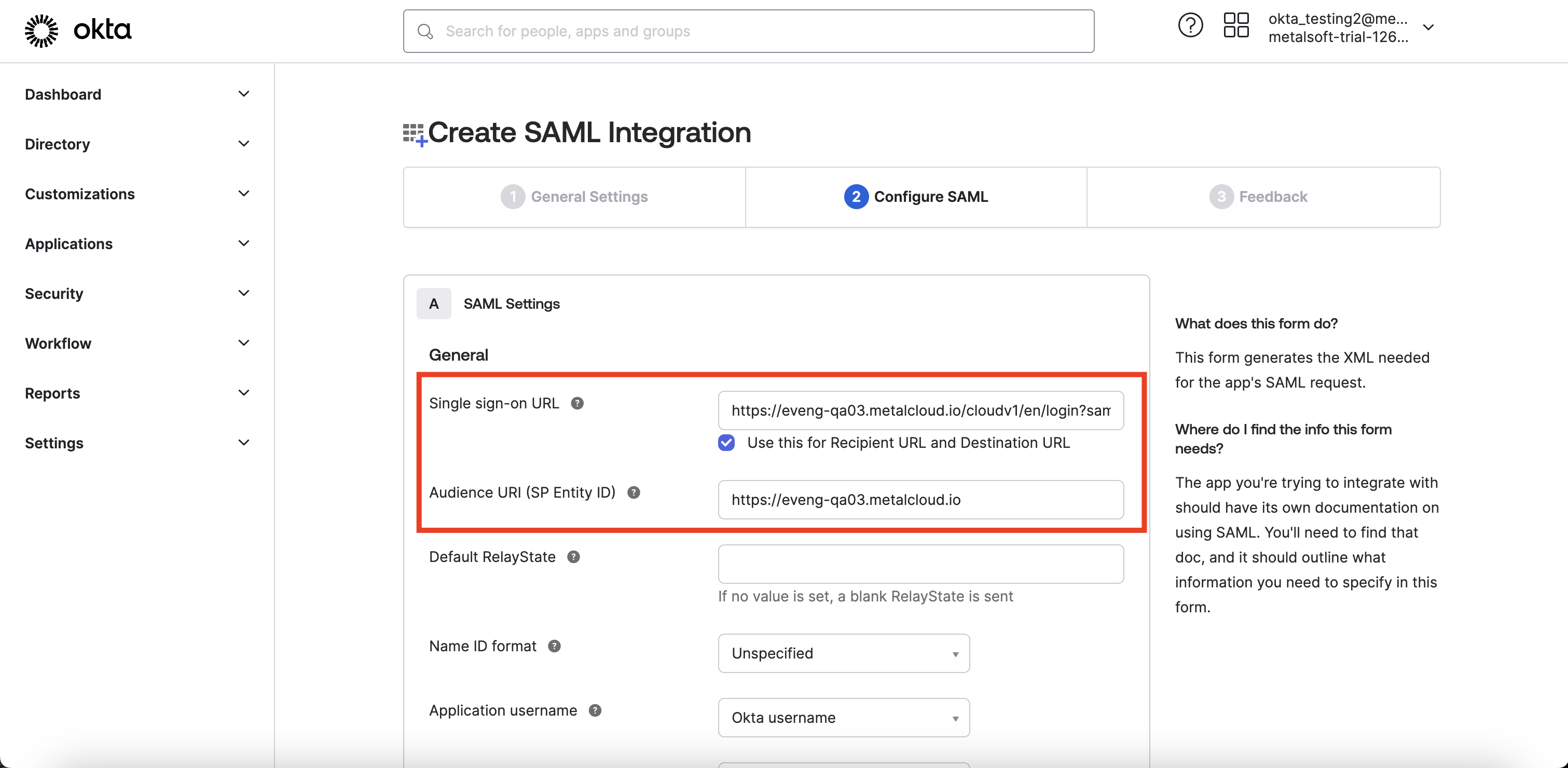
Single sign-on URL should be https://<
Audience URI (SP Entity ID) may be any, can be used https://<
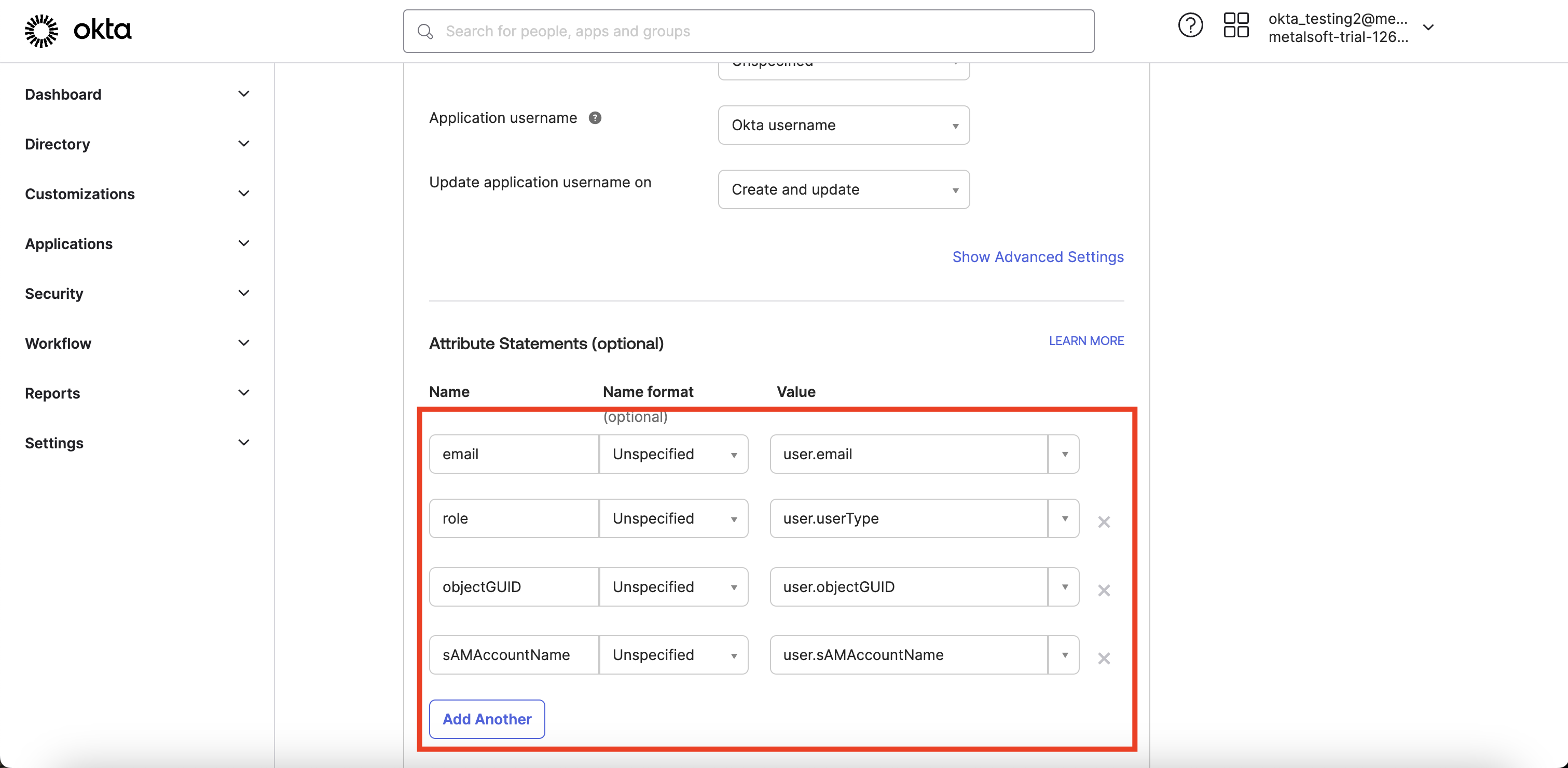
It is mandatory to have attributes in Attribute Statements (optional) section as on the example above.
The MetalSoft app expects the following attributes in the left column: email, role, objectGUID, and sAMAccountName. However, the values in the right column may differ from the example.
-
email- This attribute represents the email address that MetalSoft uses in the app. -
role- This attribute indicates the user’s role in the MetalSoft app (e.g., root, user, full_admin, etc.). -
objectGUID- This attribute should be a unique value associated with the user. In the given example, the configuration uses the custom attribute ‘user.objectGUID’, but you can map it to any unique attribute associated with the user. -
sAMAccountName- This attribute represents the user’s username. For example, if the user’s email is ‘john.doe@domain.com’, the corresponding username could be ‘John Doe’. In the example above, the configuration maps sAMAccountName to ‘user.sAMAccountName’, but you can map it to any attribute that corresponds to the username.
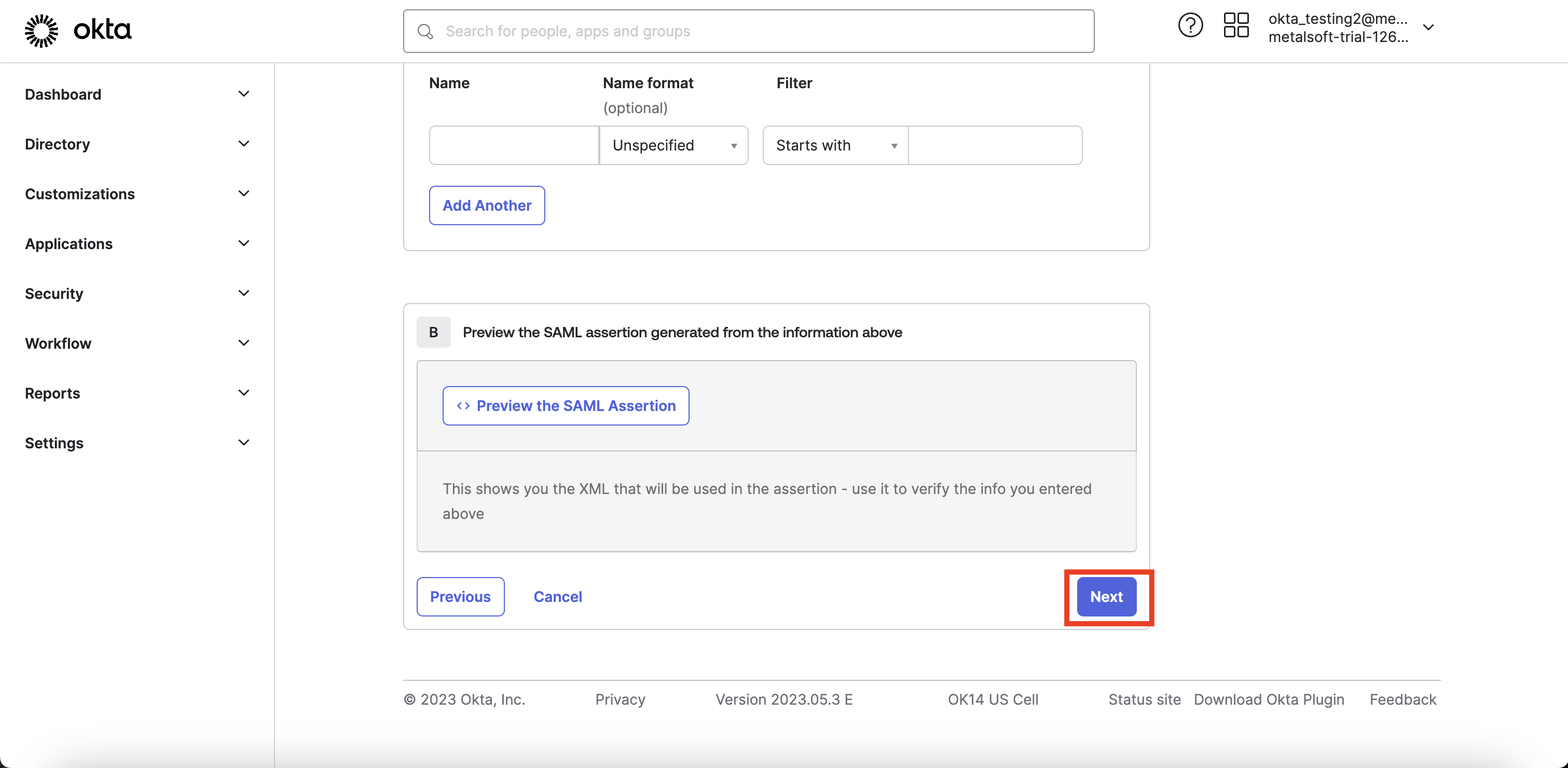
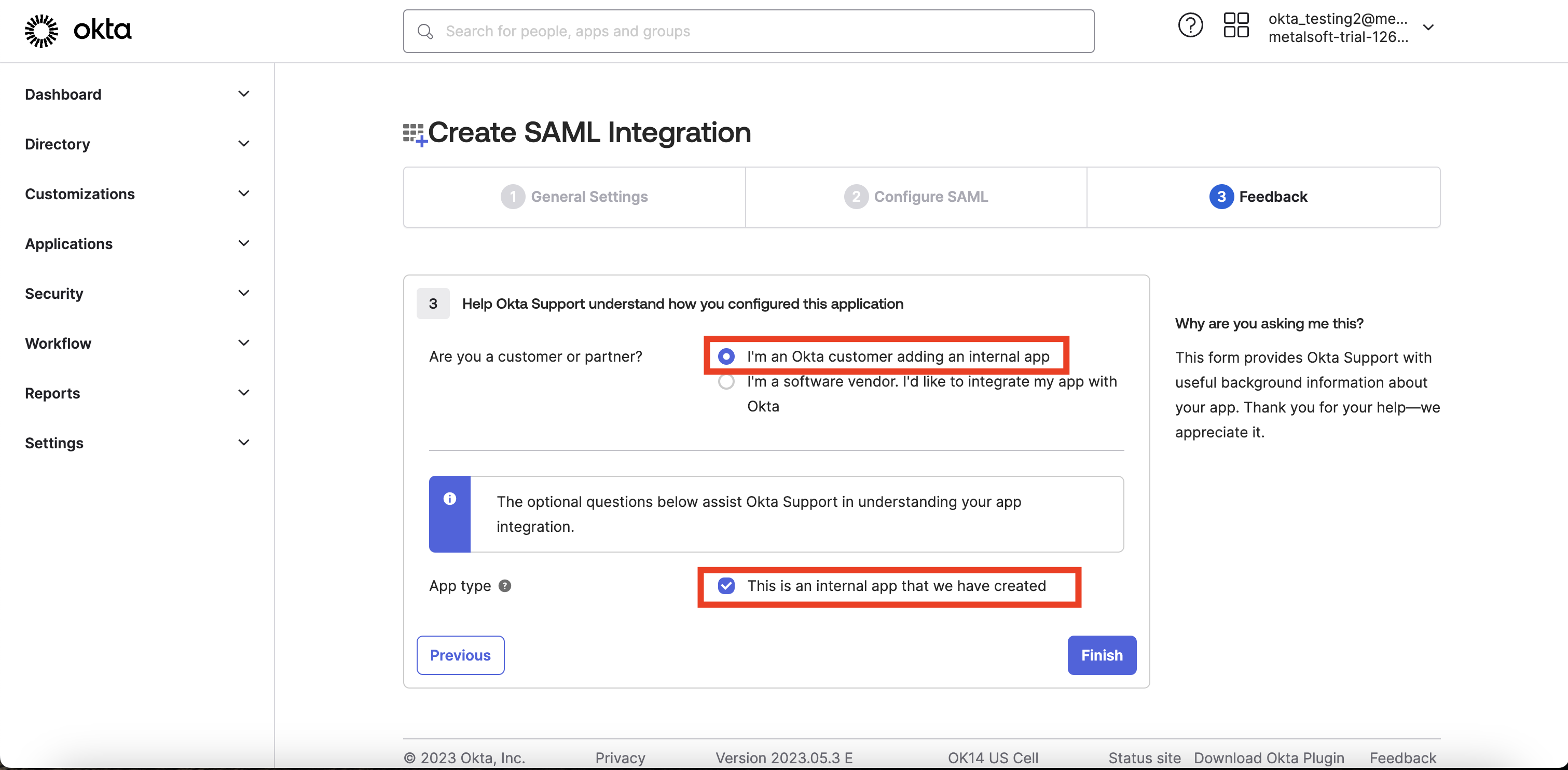
After clicking “Finish,” Okta creates the app.
- Assign a user to the app


Step 2. Configuring MetalSoft app for using Okta configuration
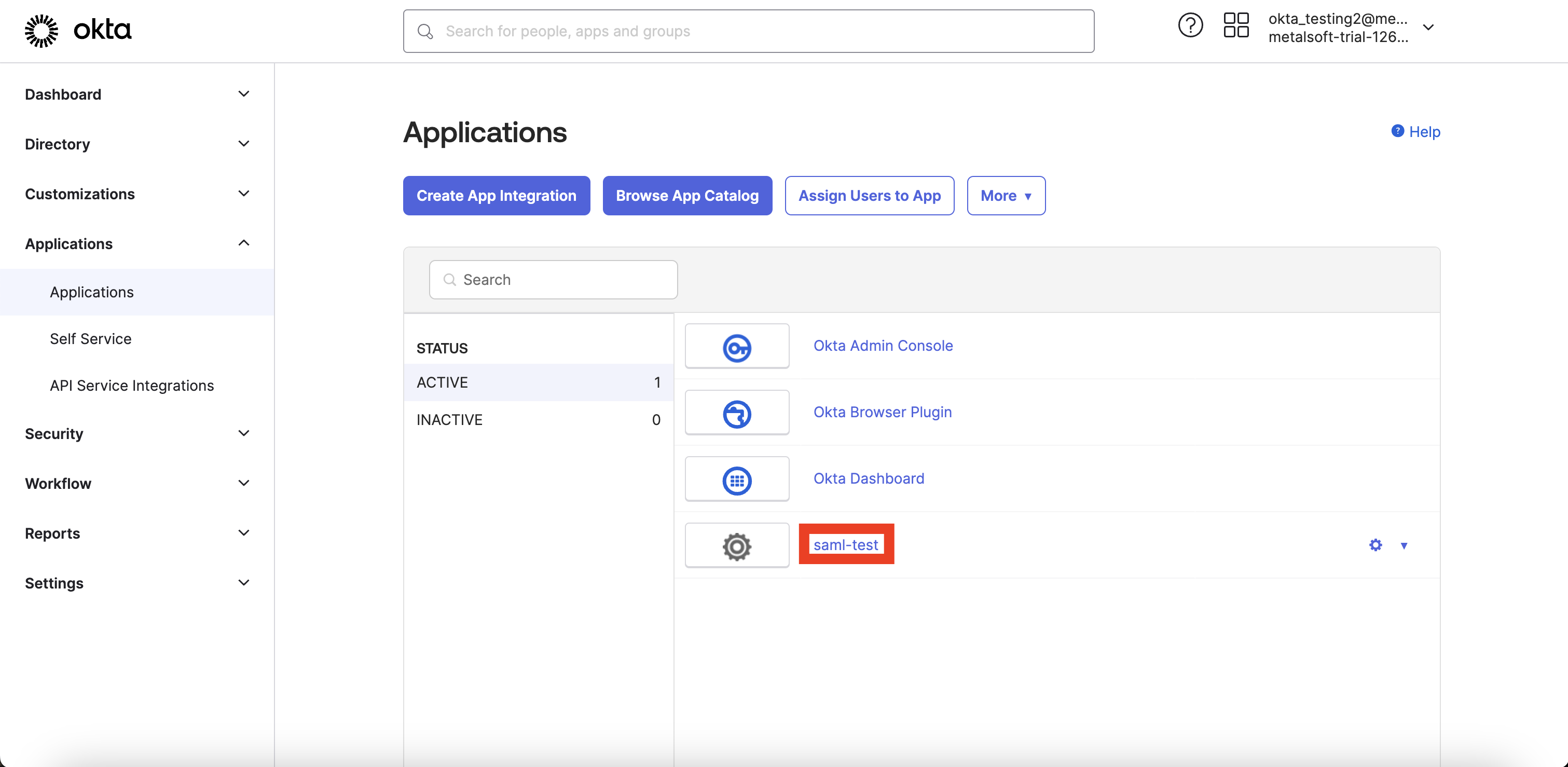
Section titled “Step 2. Configuring MetalSoft app for using Okta configuration”Step 1 creates an app named “saml-test.” Step 2 integrates Okta’s app with the MetalSoft app. Okta provides the configuration data required by the MetalSoft app. Follow the steps below:
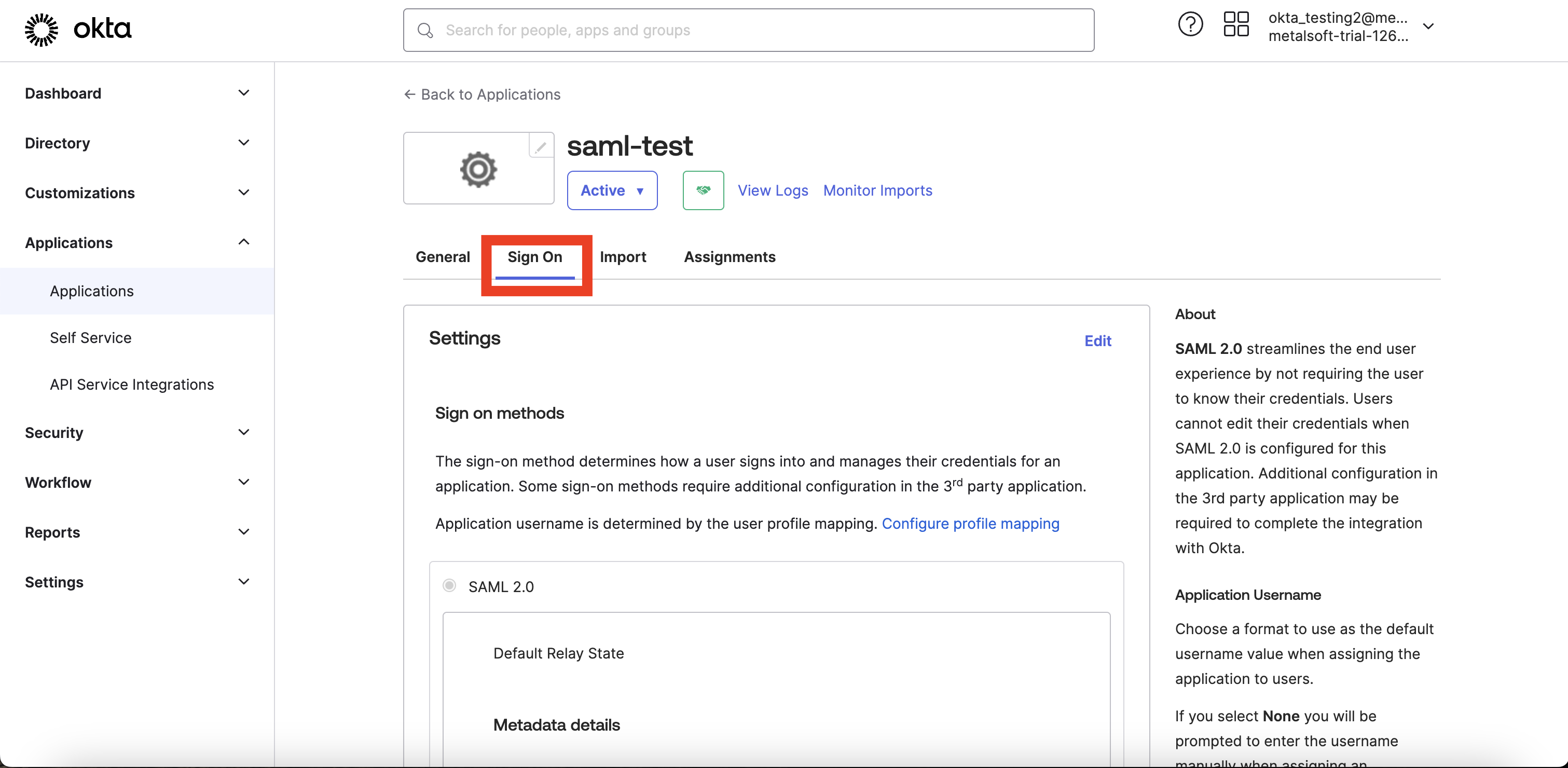
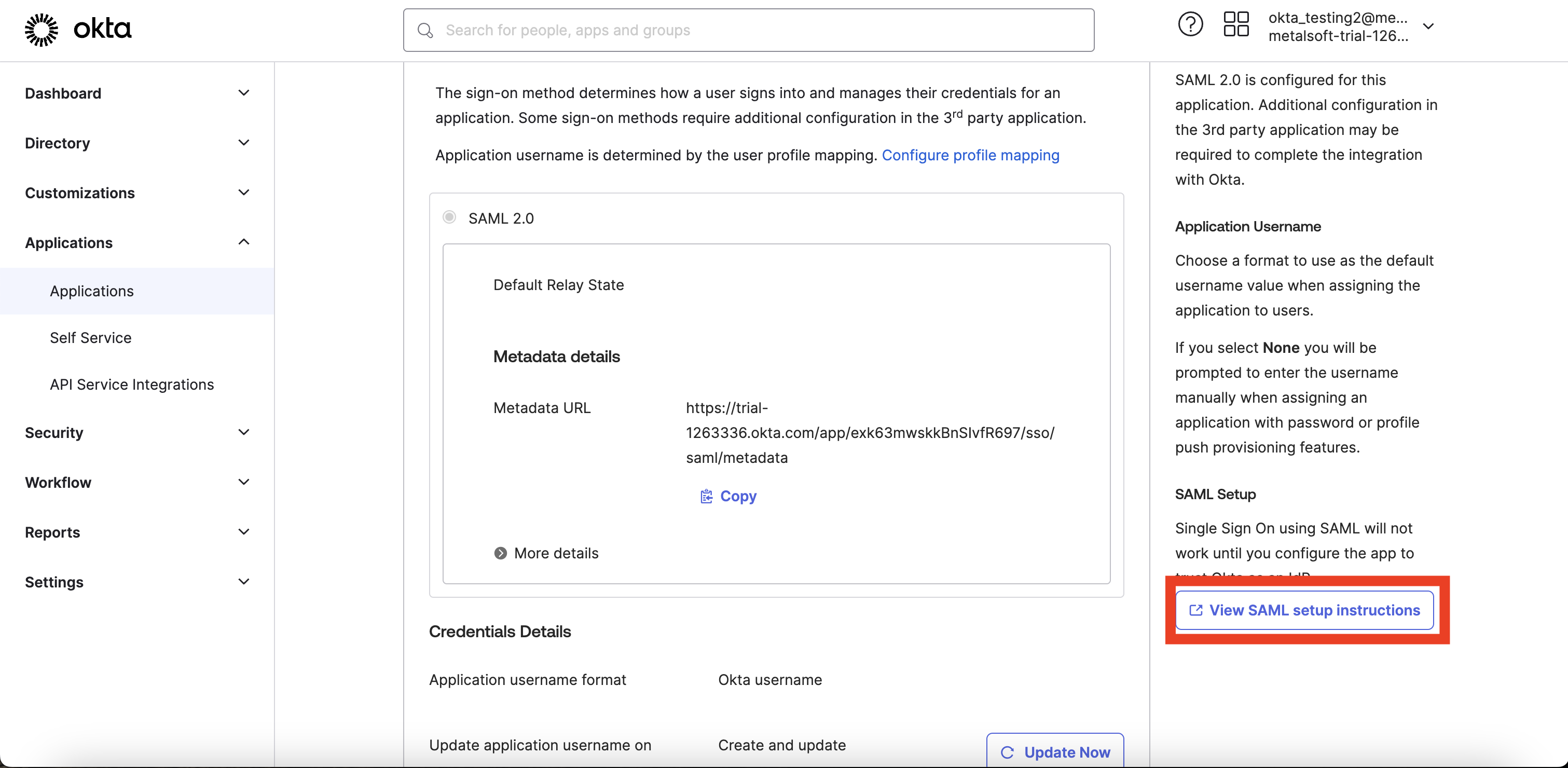
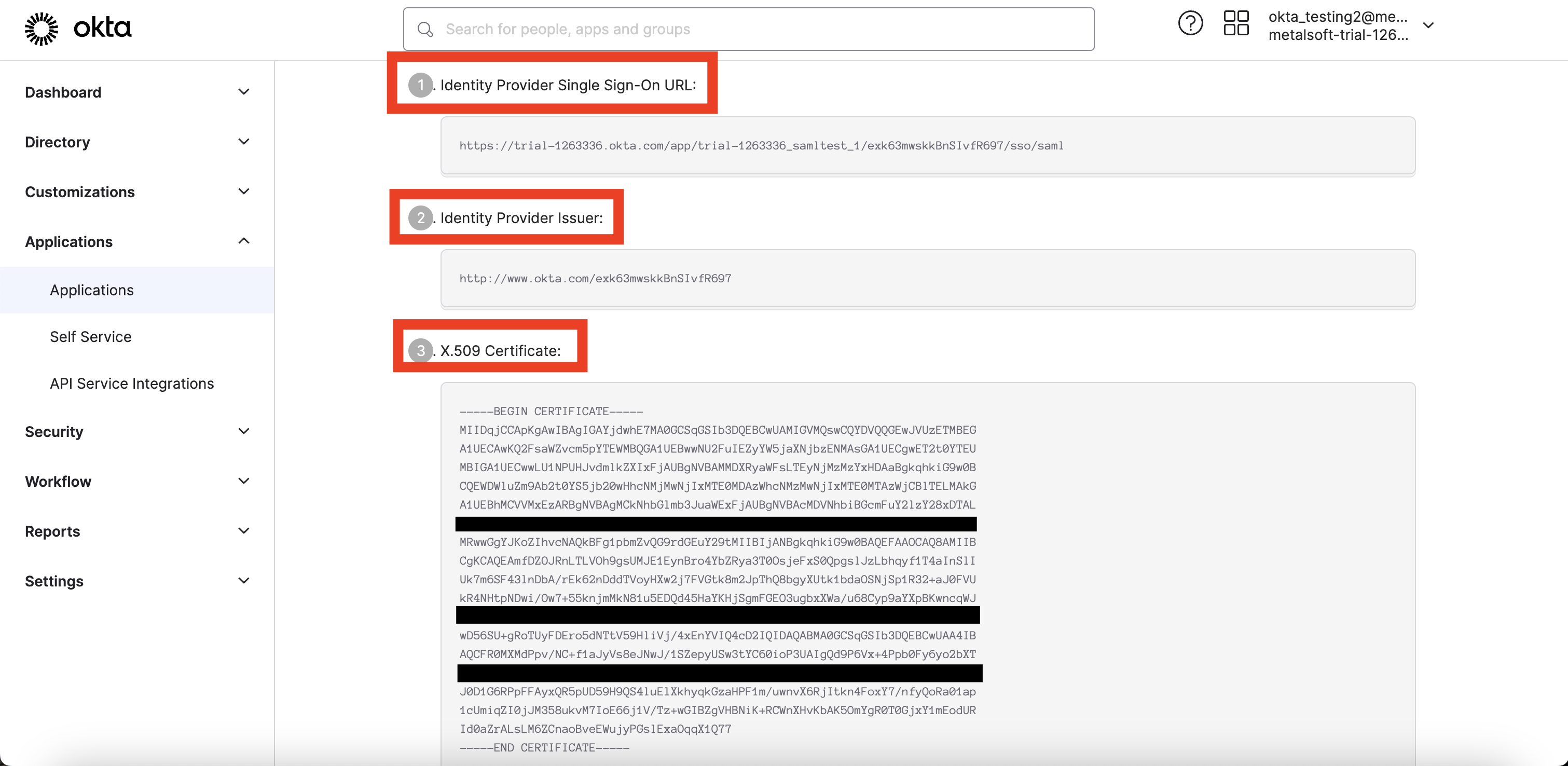
MetalSoft uses the Identity Provider Single Sign-On URL, Identity Provider Issuer, and X.509 Certificate in the app.
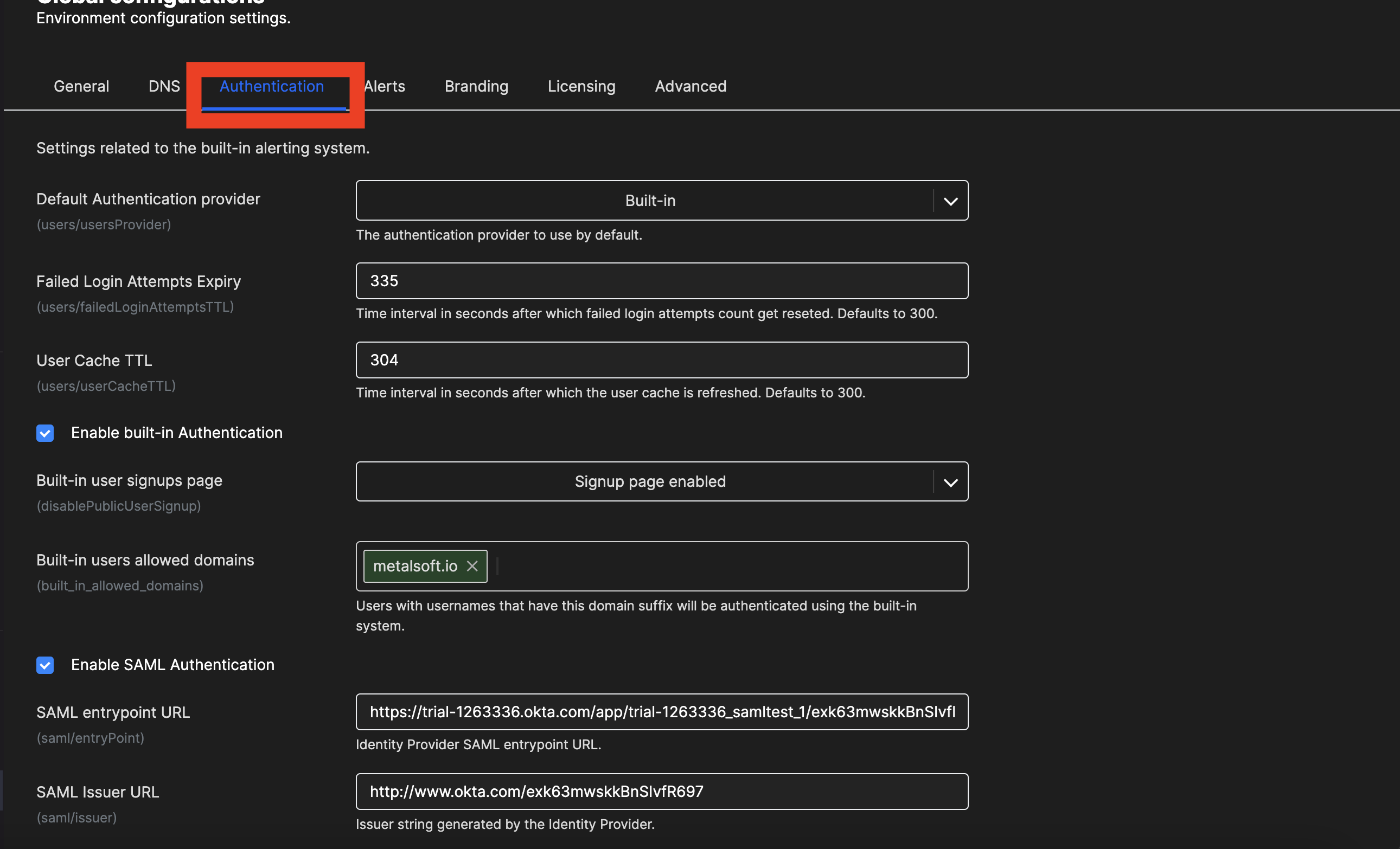
In the MetalSoft app, go to Global configuration → Authentication
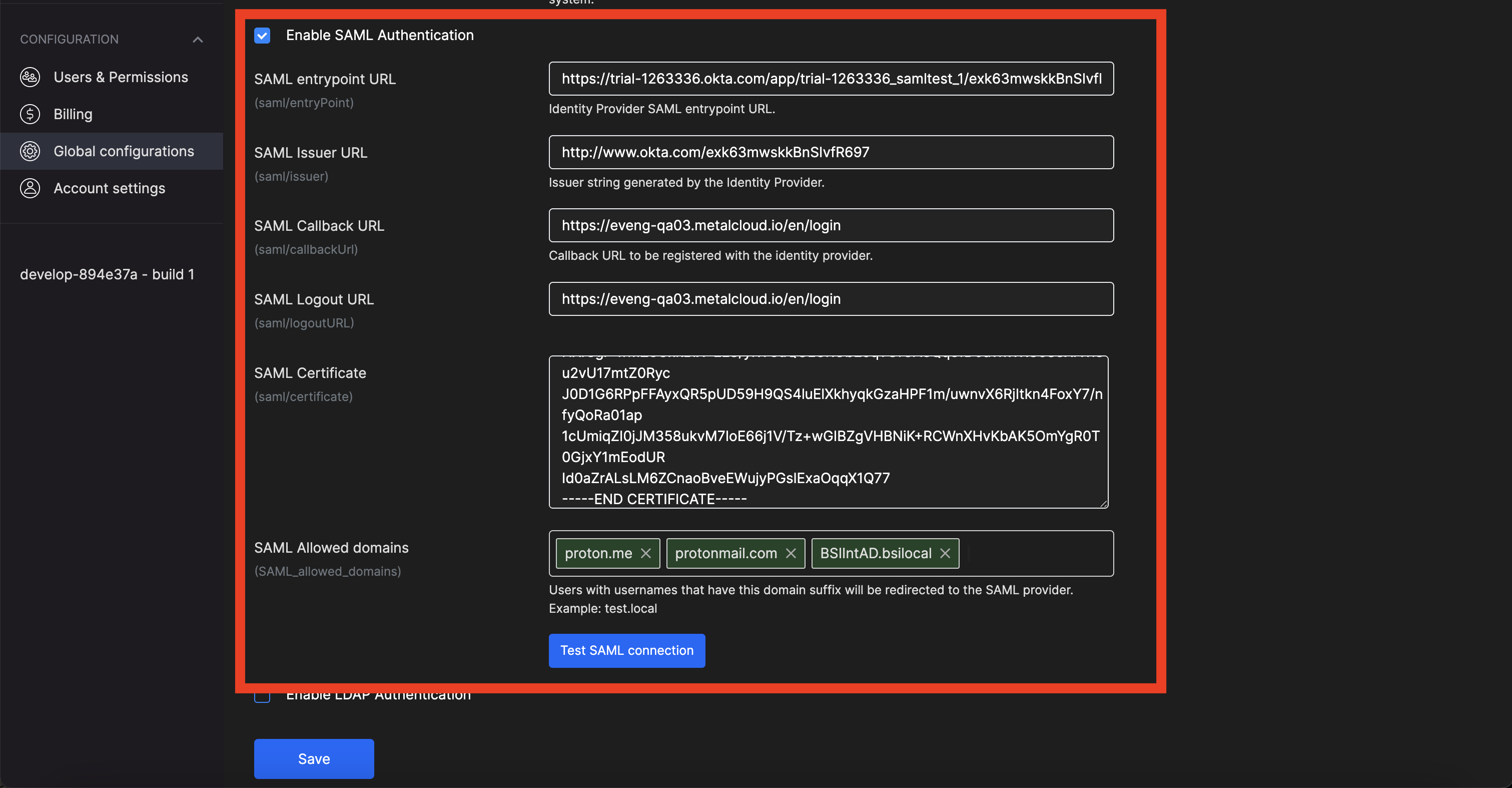
Enable SAML Authentication.
<
- SAML entrypoint URL = Identity Provider Single Sign-On URL
- SAML Issuer URL = Identity Provider Issuer
- SAML Callback URL = https://<
>/en/login - SAML Logout URL = Okta does not expose this value directly; use https://<
> as a placeholder, because the field cannot be empty. - SAML Certificate = X.509 Certificate
- SAML Allowed domains = The domains of email addresses that MetalSoft subjects to SAML treatment on the login page. (eg. domain.com, gmail.com)
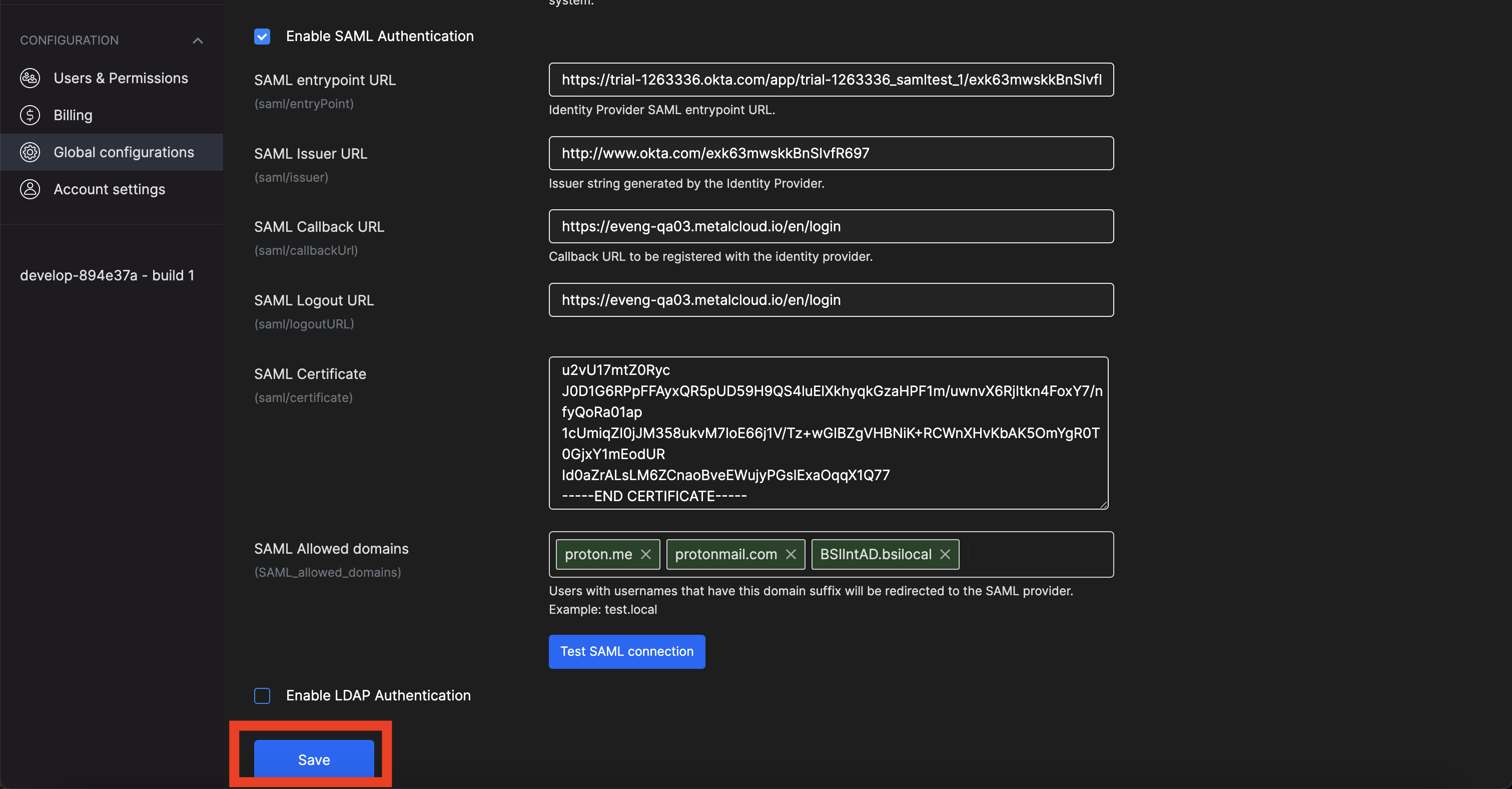
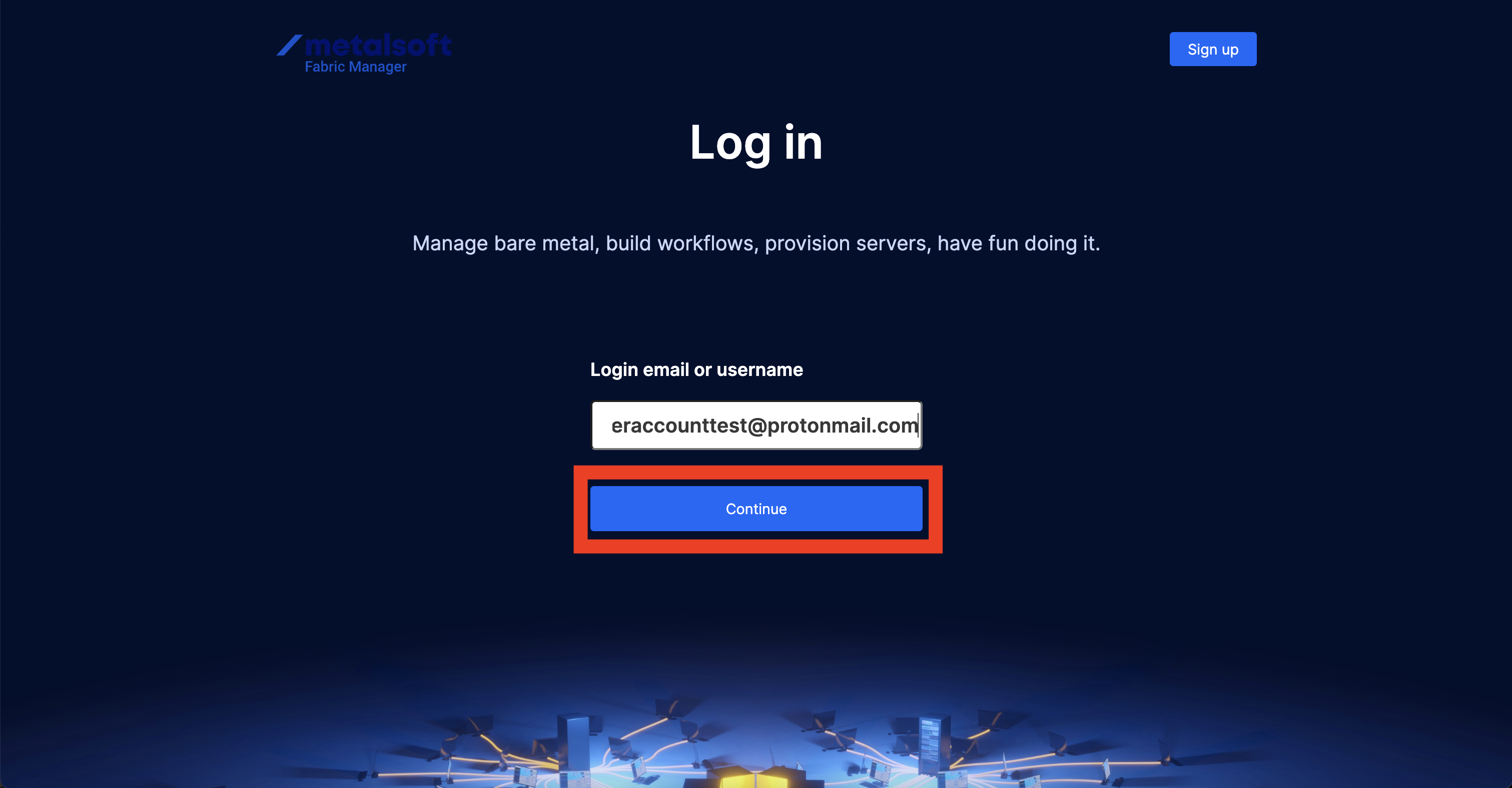
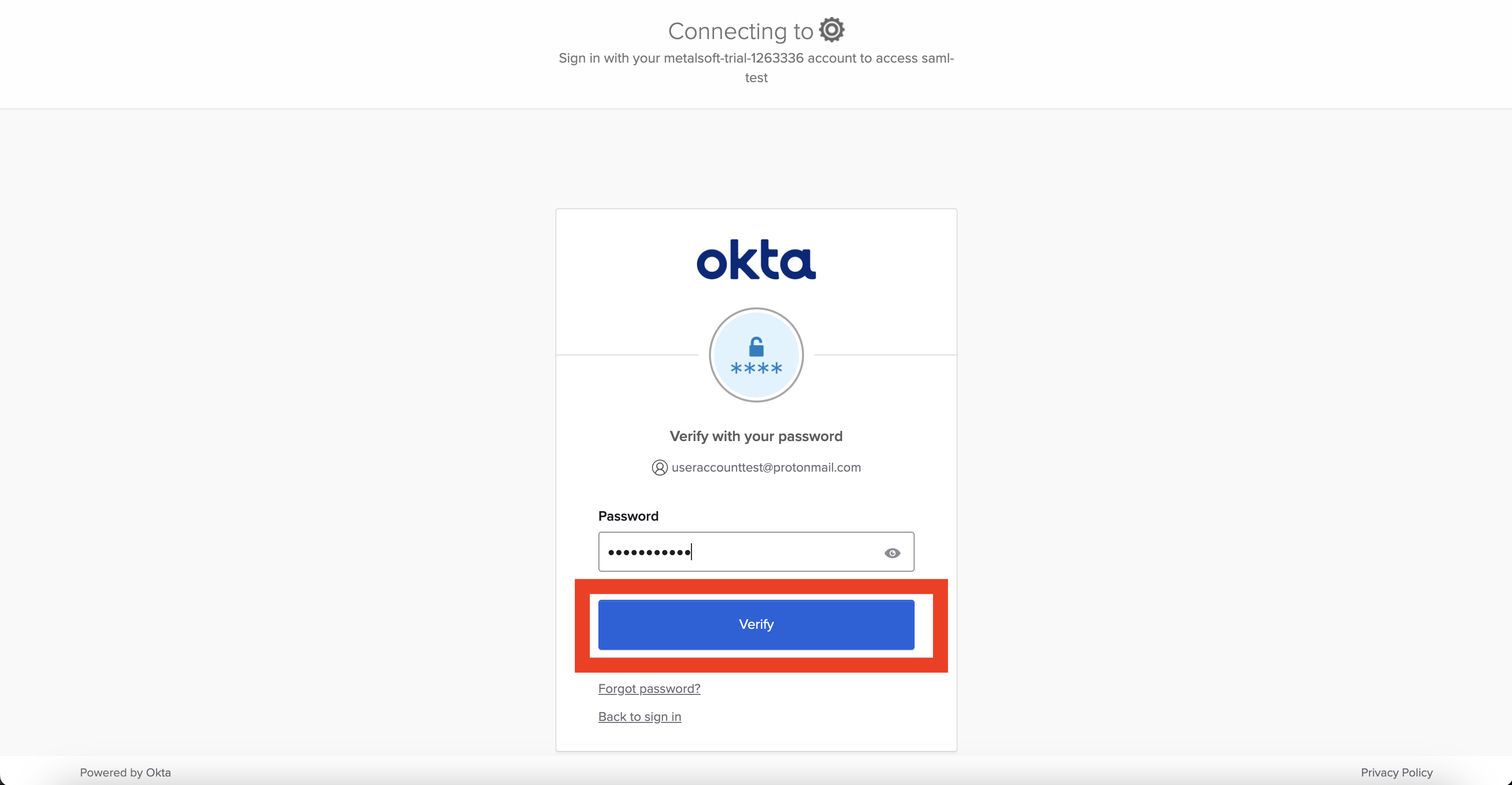
After saving the configuration, SAML works. Log in to test it.
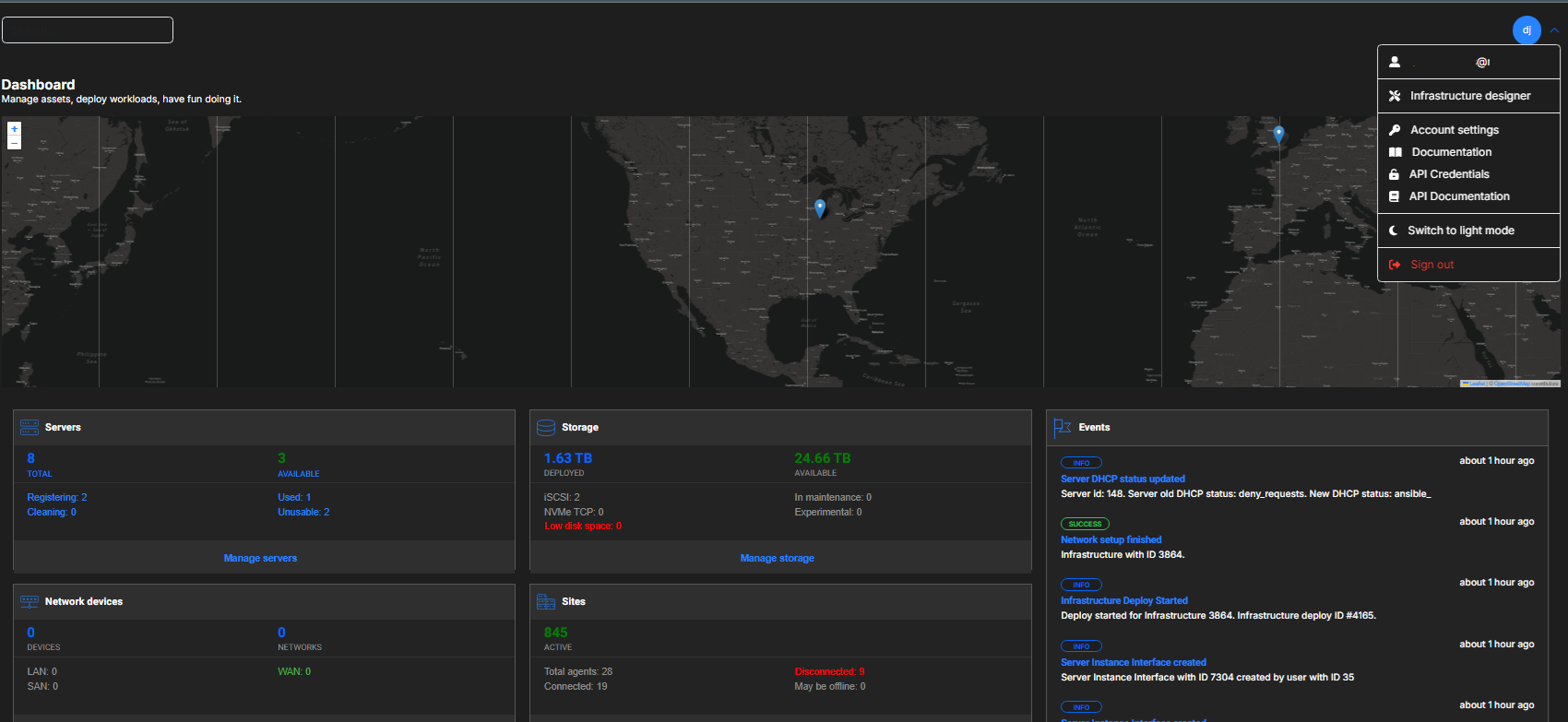
If you do not configure the SAML Logout URL properly in the MetalSoft app, or if you pass a placeholder, the Single Log Out functionality does not work correctly. Logging out from the MetalSoft app is not sufficient for a complete logout. To achieve a full logout, you must also log out from Okta.