

Server lifecycle
The following are the states as they are defined by MetalSoft:
Server states
Section titled “Server states”Available
A server is healthy and ready for use in a new provisioning operation. An admin manually changes a server to available from unavailable once they check the server’s configuration (Disks and Switch Interfaces). Administrators can also configure the system to automatically set the server to Available once it registers, by going to Sites, Site name, Configuration, and ticking Automatically set servers as available. This is normally a manually set state.
Available_reserved
MetalSoft automatically sets the available_reserved state on a server that is in the available state but reserved under a subscription for a specific user. This is an automatically set state.
Used
A server is already in use and cannot be used in a new provisioning process while in this state. You cannot manually change a server to used, and should not manually change it to another state from used. This is an automatically set state.
Registering
When you first add a new server to the application, it passes through a complex process so the system is aware of the server’s hardware components, configuration, etc. For this, MetalSoft boots a live, lightweight, custom Linux image via the BMC and runs a series of scripts. This is an automatically set state.
Cleaning
A server under the cleaning state is in the middle of a de-provision operation. The same live Linux image runs clean-up scripts during this stage, making the server ready for a new provisioning operation. This is an automatically set state.
Defective
When specific issues occur with a server or hardware faults are present, you can mark a server as defective from the advanced page. When in defective state, a server cannot pass into the Used state. This is a manually set state.
Used_registering
A server is in the used_registering state when you pass an already used server through the registering process. Once the registration process completes, the server will re-enter used state. This is an automatically set state.
Decommissioned
The decommissioning state describes a server that you have removed from the application; it cannot be used unless you re-add it (going back through the first server cycle described below). This is an automatically set state.
Removed from Rack When a server is no longer required, but the administrator needs to keep audit data, the administrator should change it to removed_from_rack. This is a manually set state.
Interact with the server states
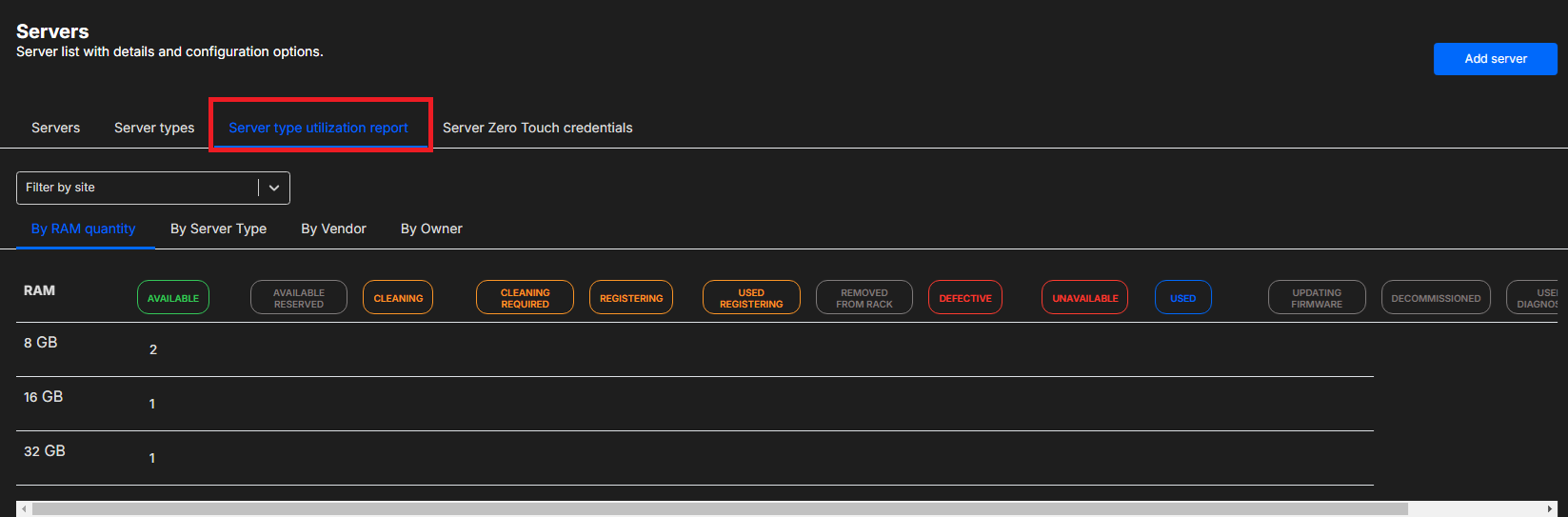
Section titled “Interact with the server states”You can see all the servers in all their states on the Server type utilization report page.
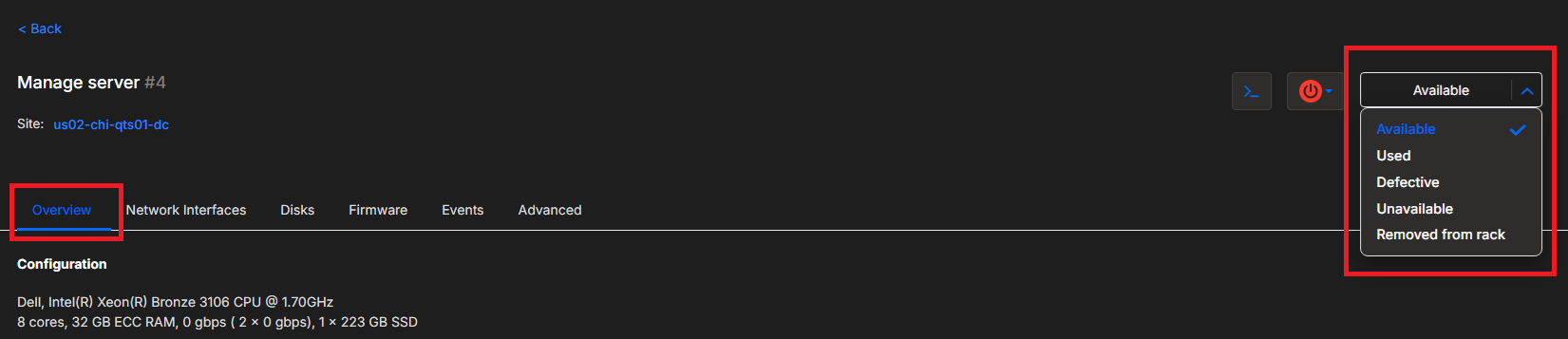
Administrators can interact with the server states. They can do so by accessing the Servers page, going to the Server status section and selecting the desired state. From here, you can move the server into available, unavailable, defective, or removed_from_rack. You should not, in normal circumstances, move a server to Used or from Used to another state unless the server is defective or decommissioned.
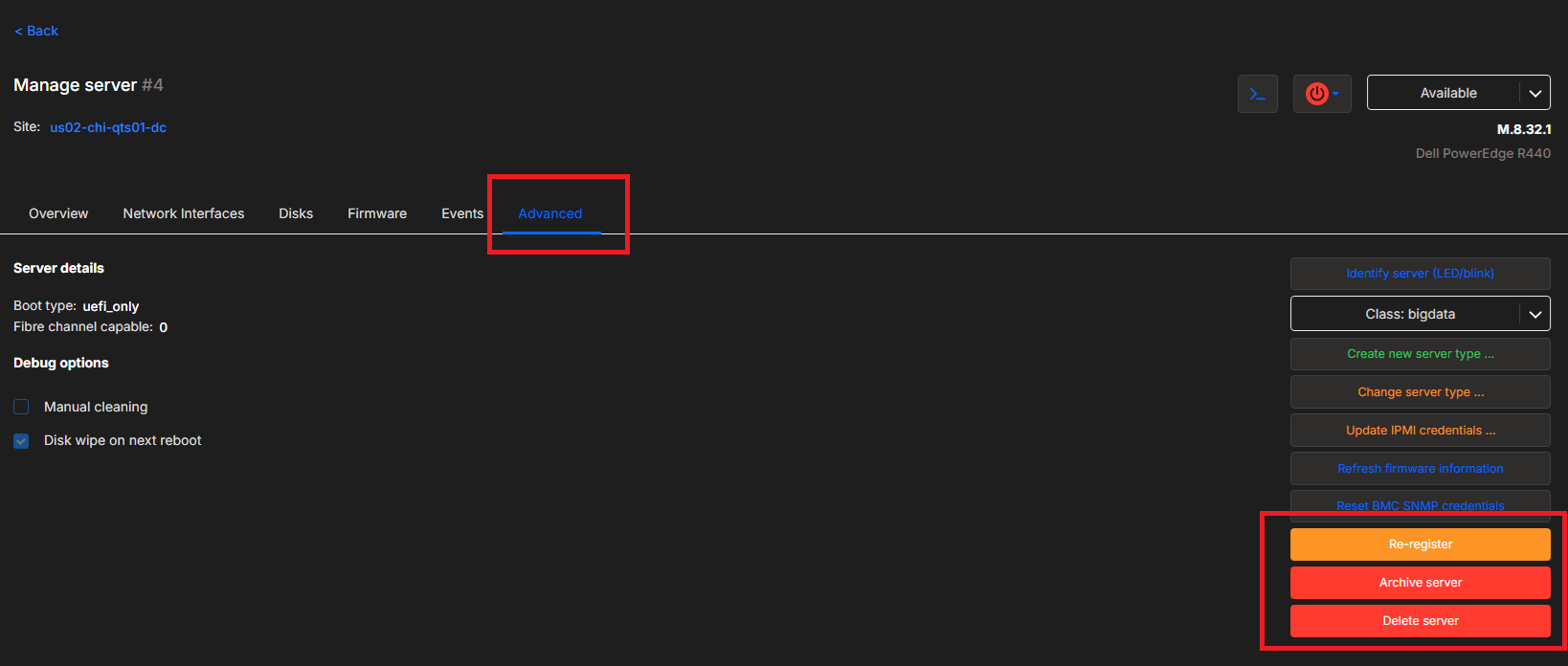
You can trigger the registration and decommissioning processes from the specific section.
Server cycles
Section titled “Server cycles”1. Adding a server and using it
When you first add a new server to the application, it passes through the registering process. If the registering process succeeds, it goes into the unavailable state. From here, you can manually set it to the available state, or configure it to become automatically available. From here on, you can select and use the server in a provision process.

2. Modifying and re-registering a used server
When you need to modify a server in use, you can issue the re-register process to it.

3. Releasing a server and using it again
The following diagram shows the states of a server from its release to its re-use.

4. Marking a server as defective
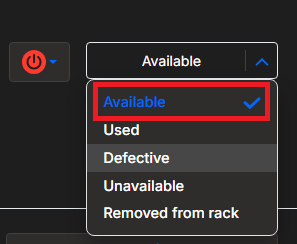
The process of marking a server as defective is manual. Once you diagnose a server as unhealthy, you can select the option below to mark it as defective. Note that the server must not be in Used state when you tag it as defective.
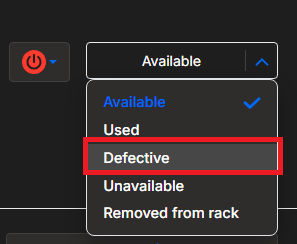
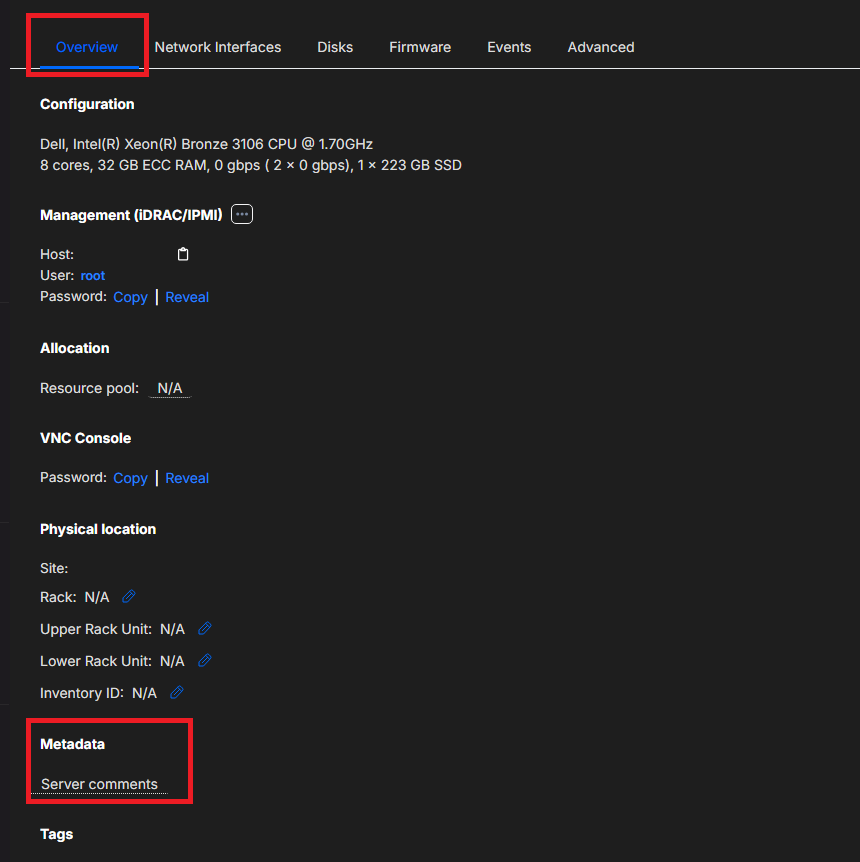
During the server recovery, you can use the Metadata section to note down the fault, current status, and other details.
After you repair the server, you can set it to available again using the Available button.
The following diagram shows the states of a server from marking it as defective to setting it as available again and then being used.

Managing hardware failures and changes
Section titled “Managing hardware failures and changes”During a server’s life, you may need to replace components or upgrade the server. For some changes, you need to make MetalSoft aware of them so MetalSoft can present the server type correctly and the networking can perform as expected.
No re-registration required (but advised)
Section titled “No re-registration required (but advised)”For the following types of replacement, you will not need to change anything in MetalSoft:
- Replace RAM same size as failed module
- Replace Disk same size/model/type as failed module (if the disk is replaced, MetalSoft still strongly recommends re-registering the server at some point so it is aware of the serial number; you can do this using Re-register, but it will cause the server to reboot)
- Replace CPU same model/type as failed module
Network card changes
Section titled “Network card changes”If you need to replace the Nic, you must re-register the server. How you do this differs depending on whether the server is in Available/Unavailable or Used state:
- Available - If the server is in Available state, you can change it to Unavailable state and then re-register it.
- Unavailable - If the server is in Unavailable state, you can re-register it directly.
- Used - If the server is in Used state, you can still re-register it. You do not need to change the state from Used; you only need to click re-register.
This will cause the server to reboot.
If the Nic is plugged into different ports on the switch, you may need to manually change the network configuration on the OS, as MetalSoft does not have access to an installed OS.
BMC board/motherboard changes
Section titled “BMC board/motherboard changes”If someone replaces the BMC board on a server (and, in some instances, the motherboard) while it is in Used state, MetalSoft strongly recommends backing up the server, removing it from the infrastructure, changing the server status from Available to Unavailable, decommissioning it (from the Advanced tab), and then registering it again. Before decommissioning the server, ensure you make a copy of the BMC IP address, user and password, as well as the serial number.
Upgrading a server
Section titled “Upgrading a server”If you want to upgrade a server’s resources, the server cannot be in use by any infrastructure (it will need to be in available state), and you will need to change it to Unavailable and re-register it. Once changed back to Available, the server will have a new server type that indicates the new configuration.