

Managing server firmware
MetalSoft is able to upgrade (or downgrade) the firmware for certain vendors (as of version 6.1):
- Dell
- HP
- Lenovo
The Site Controller performs the process: it downloads the required firmware binaries to the Site Controller repository and applies them on servers.
Mass firmware upgrades
Section titled “Mass firmware upgrades”Firmware Catalogs and Firmware Baselines control mass upgrades:
- Firmware Catalogs are typically derived from the vendor’s own catalogs such as the Dell VMWare ESXI 7-related firmware but could be general catalogs.
- Firmware Baselines are collections of Firmware Catalogs (typically one for each vendor) that attach to:
- Server types - MetalSoft applies it every time someone registers a server with the specific server type.
- OS templates - MetalSoft applies it every time someone deploys a server with the specific OS template, if not already deployed.
- Site - MetalSoft applies it every time someone deploys a server in the specific site.
Upgrading a server’s individual components
Section titled “Upgrading a server’s individual components”At registration time, the system checks for the firmware of the various components of the server.
MetalSoft also makes a separate, daily request to check for available upgrades using the server’s upgrade site (where available). Click “Check for available upgrades” to force a check.
Available upgrades will appear in the component’s list.
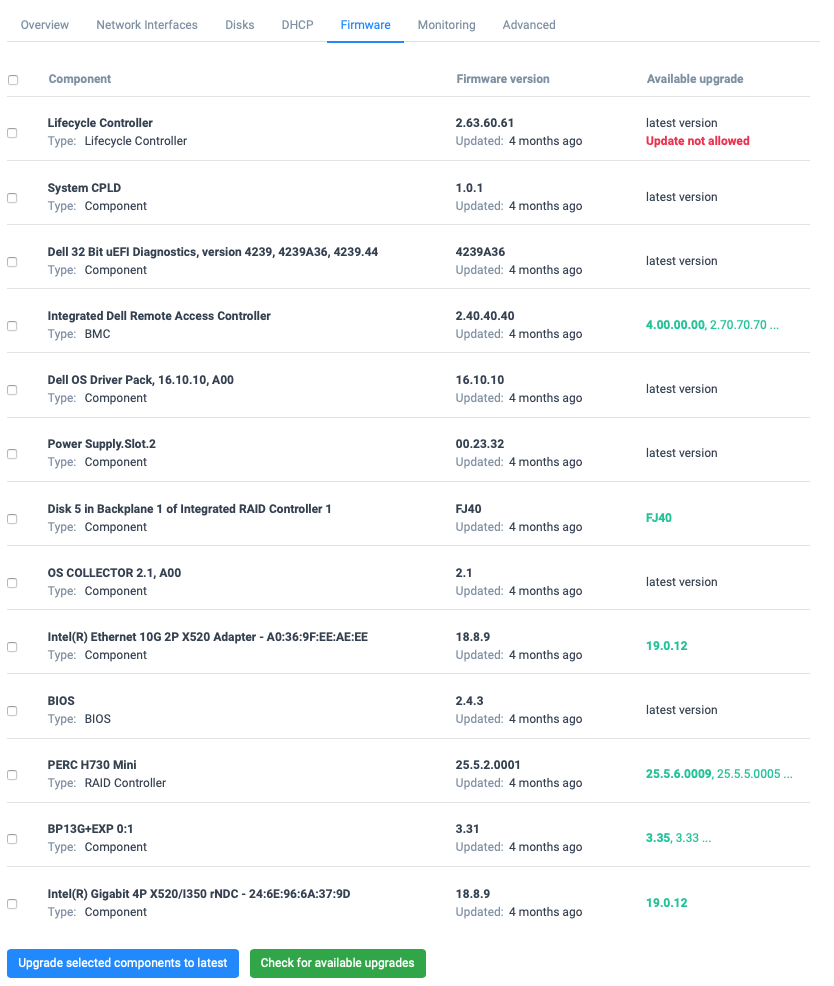
MetalSoft typically performs component upgrades in one go to avoid rebooting the server multiple times. Check the components that need to be upgraded and click “Upgrade selected components to latest” to trigger a mass upgrade which will reboot the server.
If the server is allocated, MetalSoft notifies the user and all its delegates by email, and sets the term for the upgrade to 24h from the moment of the button press.
Enabling automatic firmware upgrades
Section titled “Enabling automatic firmware upgrades”To enable automatic firmware updates, go to Firmware upgrade > Automatic upgrade. Select Enabled from the dropdown and set an interval of at least 1h as the target upgrade interval.
To define which server types and components MetalSoft will upgrade if upgrades are available, create policies by clicking on Add firmware upgrade policy.
Managing firmware via the API
Section titled “Managing firmware via the API”Getting the global firmware configuration
Section titled “Getting the global firmware configuration”curl "https://<your-server>/api/v2/firmware/configuration" \ -H "Authorization: Bearer <API_KEY>"Listing server firmware components
Section titled “Listing server firmware components”curl "https://<your-server>/api/v2/servers/{serverId}/firmware/components" \ -H "Authorization: Bearer <API_KEY>"Triggering a firmware upgrade on a server
Section titled “Triggering a firmware upgrade on a server”curl -X POST "https://<your-server>/api/v2/servers/{serverId}/firmware/actions/upgrade" \ -H "Content-Type: application/json" \ -H "Authorization: Bearer <API_KEY>" \ -d '{ "componentIds": [1, 2, 3] }'Listing firmware policies
Section titled “Listing firmware policies”curl "https://<your-server>/api/v2/firmware/policies" \ -H "Authorization: Bearer <API_KEY>"Creating a firmware policy
Section titled “Creating a firmware policy”curl -X POST "https://<your-server>/api/v2/firmware/policies" \ -H "Content-Type: application/json" \ -H "Authorization: Bearer <API_KEY>" \ -d '{ "name": "auto-upgrade-bios", "serverTypeId": 1, "componentTypes": ["BIOS"] }'