

Creating a logical network
Logical Networks are an abstract term that MetalSoft uses to represent a network to which Endpoints, Servers, VMs or Clusters can be attached via Connections. These are sometimes referred to as “overlay” but to avoid the confusion with virtualization-level overlay networks (such as those created in VMWare NSX-T or OVN) we use this more generic term.
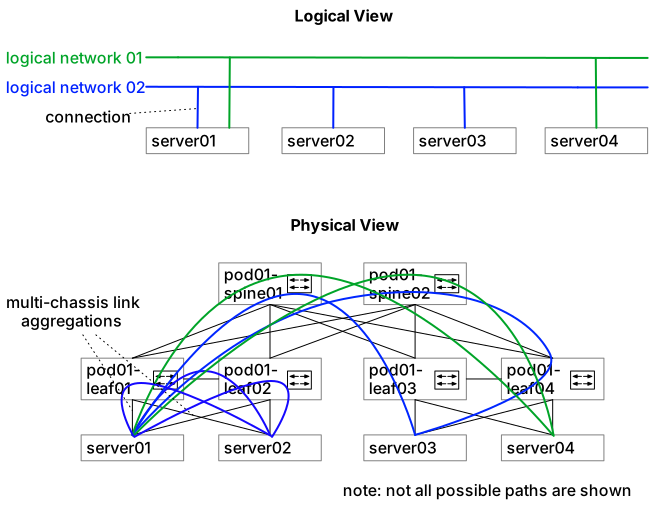
The “underlay” configuration and the physical configuration is abstracted. In the picture above a complex setup with multi-chassis port channels and potentially BGP sessions for EVPN signaling is deployed to carry the logical networks from one endpoint to another.
Logical networks are created in two ways:
-
Pre-created by Admins
These are usually used for north-south “public” networks such as the ones used to provide tenants with access to the Internet and typically provide the default gateway. These can be a implemented as a common, shared L2 broadcast domain or private L2 broadcast domain depending on the configuration.
-
Created by consumers from Network Profiles
This is usually used for east-west private networks that are isolated from other tenants. These networks are usually private to the respective Infrastructures in which they are created.
Creating a Logical Network
Section titled “Creating a Logical Network”To create a logical network for VLAN 100 with subnet 192.168.100.0/24, with 192.168.100.1 as gateway:
-
Enable the VLAN on the fabric
- Go to Fabrics → my fabric → Configuration.
- Ensure VLAN 100 is in the list in the VLAN Ranges field.
-
Add the subnet
- Go to IPAM → Add subnet
- Name it “In-band”
- Select In Band
- Select the Fabric (Called “In-band” in the previous tutorial)
- Leave the parent subnet empty
- Subnet: Input 192.168.100.0/24
- Select Single
- Input a default gateway: 192.168.100.1
- Click Add subnet
-
Add the Logical Network
- Go to Fabrics → my fabric → Logical Networks → Add logical network
- Give it a name such as VLAN-100 and a label such as vlan-100
- Select VLAN
- Select VLAN Allocation strategy: manual
- Input the VLAN: 100
- Enable IPv4 Subnet Allocation
- Select Strategy: manual
- Select the subnet pool: In-band
- Select the Gateway Placement as “External”
- Input an MTU or leave empty.
Note that you can see all logical networks, both private and pre-created ones if you go to the “logical networks” tab and select “All” then Filter.
Options
Section titled “Options”The following options are available for both logical networks and network profiles and they depend on the Fabric type:
- Ethernet Fabrics:
- Kind:
VLAN- This will use VLAN-backed logical networks.VXLAN- This will use EVPN VXLAN-backed logical networks.
- Allocation strategy
- Manual - The specified VLAN will be used.
- Auto:
- Scope Fabric - The first available VLAN from the range specified in the VLAN Ranges of the Fabric Configuration will be used. The VLANs will be global.
- Scope Switch - Not currently available
- IPv4/IPv6 Subnet Allocation
- Enabled - Enable/disable
- Strategy:
- Manual - A single IP will be allocated from the selected subnet to each endpoint/server/vm connected to the logical network.
- Subnet - The subnet from which to allocate the IP. Only subnets of type “Single” can be used.
- Automatic - A smaller subnet will be allocated from the selected subnet for each infrastructure in which the logical network is deployed in. From that subnet, individual IPs will be allocated to the hosts that are connected to the logical network.
- Subnet pools - The subnet from which to allocate the IP. Only subnets of type “Pool” can be used.
- Prefix length - The size of the subnet that will be allocated for each Infrastructure connected to this logical network.
- Gateway placement:
- Default - The gateway will be placed on the leaf switches in a redundant manner, either as Symmetric IRB, VRRP etc (if supported by the driver).
- External - No gateway will be provisioned and is considered to be external to the Fabric (such as on a Firewall)
- Manual - A single IP will be allocated from the selected subnet to each endpoint/server/vm connected to the logical network.
- MTU - Maximum Transmission Unit. If not set, it defaults to 1500. If on a connection object to a system connected to this it is set to a different value, the highest value will be used.
- Kind:
- Infiniband Fabrics
- Allocation strategy
- Manual - The specified VLAN will be used.
- Auto - One of the PKEYs specified on the fabric settings will be used, in order.
- Allocation strategy
Managing logical networks via the API
Section titled “Managing logical networks via the API”Creating a logical network
Section titled “Creating a logical network”curl -X POST "https://<your-server>/api/v2/logical-networks" \ -H "Content-Type: application/json" \ -H "Authorization: Bearer <API_KEY>" \ -d '{ "fabricId": 1, "name": "VLAN-100", "label": "vlan-100", "kind": "vlan", "vlan": { "allocationStrategy": "manual", "vlanId": 100 }, "ipv4": { "allocationStrategy": "manual", "subnetPoolId": 5, "gatewayPlacement": "external" }, "mtu": 9000 }'Creating a logical network from a profile
Section titled “Creating a logical network from a profile”curl -X POST "https://<your-server>/api/v2/logical-networks/actions/create-from-profile" \ -H "Content-Type: application/json" \ -H "Authorization: Bearer <API_KEY>" \ -d '{ "logicalNetworkProfileId": 1, "infrastructureId": 10, "name": "tenant-private-net", "label": "tenant-private-net" }'Listing logical networks
Section titled “Listing logical networks”curl "https://<your-server>/api/v2/logical-networks" \ -H "Authorization: Bearer <API_KEY>"Getting a specific logical network
Section titled “Getting a specific logical network”curl "https://<your-server>/api/v2/logical-networks/{logicalNetworkId}" \ -H "Authorization: Bearer <API_KEY>"Deleting a logical network
Section titled “Deleting a logical network”curl -X DELETE "https://<your-server>/api/v2/logical-networks/{logicalNetworkId}" \ -H "Authorization: Bearer <API_KEY>"