

Fabrics
Fabrics are a collection of Network devices, network configurations, network profiles and external connections.
A Fabric is required before setting up a switch out of band subnet and a network device
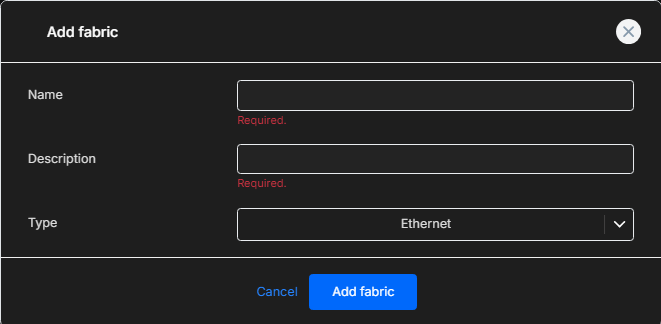
To set up a Fabric, click on Fabrics in the Admin UI and click on Add Fabric

In the box, fill in the Name, Description and Type (Currently, Ethernet is the only supported option)
You will notice the Fabric is currently in Draft. In this state, the fabric is not available for use. Changing it to Active will make it available for use.

At this point, set up the switch out of band subnet and the network device which will be associated to the fabric.
Once these are set up, click on the fabric to edit it.
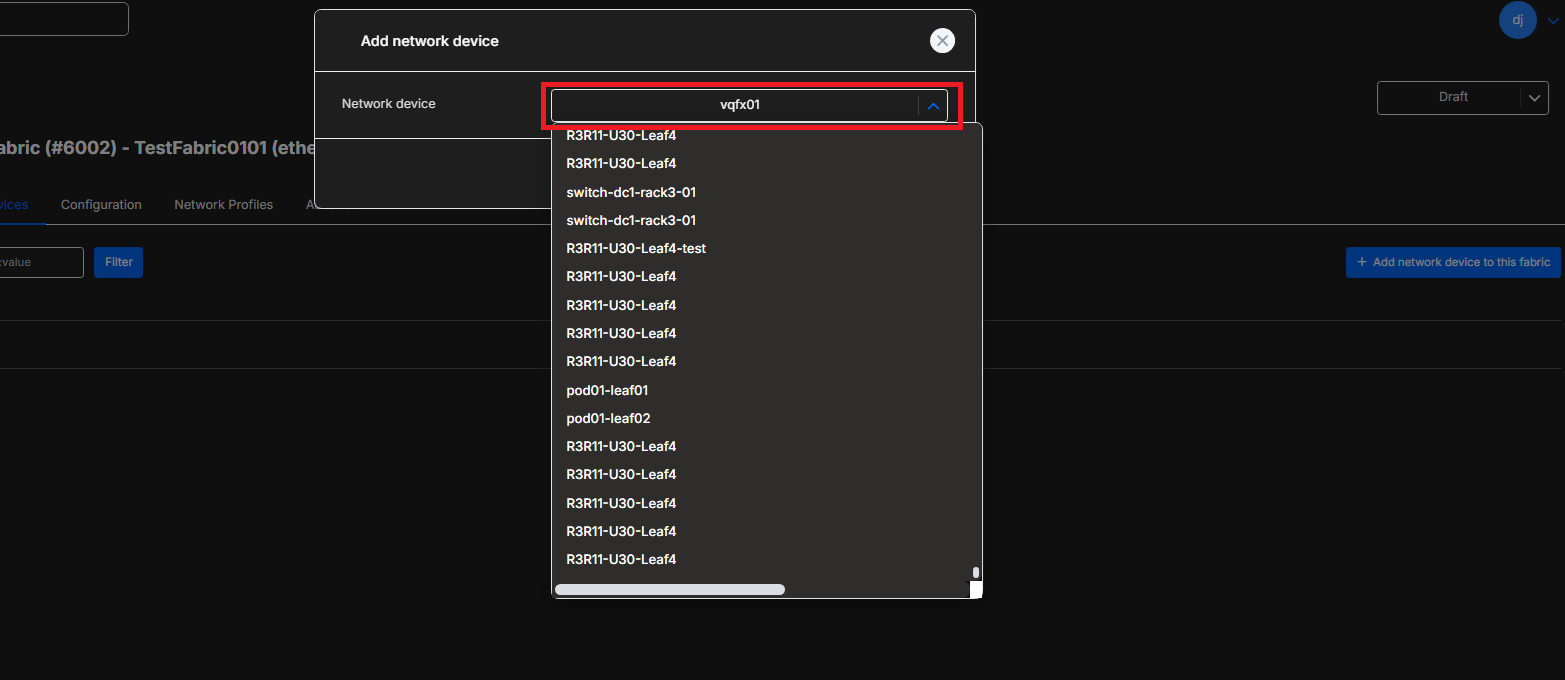
To add a network device click on Add network device to this fabric in the first tab Network devices

In the pop up, click on the dropdown and select the network device you wish to add to the fabric and click Add network device
Once the network devices are added, they can be edited by clicking on the name or clicking edit (this will direct you to the specified network device). They can also be deleted from the fabric by clicking on delete

Click on Configuration to change the configuration of the fabric.
From here, the following can be configured:
- Site - The site this fabric will be assigned to
- Default Network Profile - The default network profile used by the fabric
- Custom Variables - Free-form key-value pairs for use in network device configuration templates
- Zero-Touch Provisioning Enabled - To enable the ability to provision switches in the fabric using Zero-Touch
- gNMI Monitoring Enabled - To enable monitoring for the switches in the fabric using gNMI
- Syslog Monitoring Enabled - To enable monitoring for the switches in the fabric using syslog
- Default VLAN - Default VLAN to use on fabric
- VNI Prefix - The prefix used for automatic VNI allocation in VXLAN fabrics
- L3 VNI Prefix - The prefix used for L3 VNI allocation in EVPN symmetric IRB configurations (used by Route Domains)
- VLAN Ranges - The range of VLANs which this fabric will use to be automatically provisioned
- VRF VLAN Ranges - The range of VRF VLANs which this fabric will use to be automatically provisioned
- Reserved VLANs - List of VLANs to be blacklisted in the VLAN Ranges
- Prevent VLAN Cleanup - Prevent the specified VLANs from being cleaned up by the MetalSoft system
- ASN ranges - List of ASN ranges to be used by the MetalSoft system
- LAG ranges - List of LAG ranges to be used by the MetalSoft system
- MLAG ranges - List of MLAG ranges to be used by the MetalSoft system
Click on Network Profiles to add/edit network profiles
Click on Route Domains to manage route domains for L3 isolation
Click on Fabric Interconnects to manage fabric interconnects for DCI
Click on BGP Sessions and Link Aggregations to manage BGP sessions and link aggregations on the fabric links
Click on Advanced to delete the fabric