

Deploying the MetalSoft Site Controller
Each site or pod is managed via a dedicated MetalSoft Site Controller. When powered on, Site Controllers will connect to the configured Global controller and will authenticate using pre-installed keys and will tie to the configured Site record.
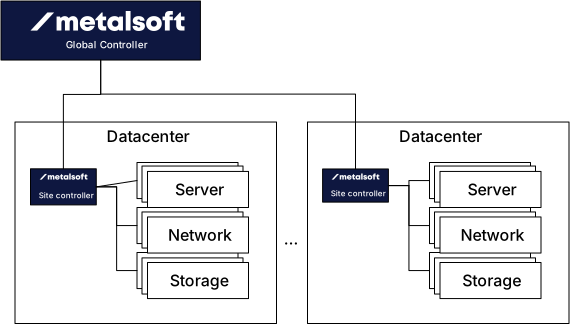
There are different ways in which the MetalSoft Site Controller can be deployed:
- On bare metal
- As a VM with layer 2 connectivity to the management network
- As a VM with a firewall providing security and DHCP relay services
Under normal operation the Site Controller only requires access to the Out of band (management) networks. No in-band access is required.
The only exceptions to the above are when Extensions defined in MetalSoft need to talk to OS in-band networks for deploying or configuring software OR the Site Controller is used for older systems that only support PXE in which case the network setup is different or MetalSoft apps are used in conjunction with deploying the Operating System.
Resource requirements
Section titled “Resource requirements”The following resources are typically required for a MetalSoft Site Controller installation:
- 300GB Disk
- 8 vCPU
- 16GB RAM
- Ubuntu 22.04 or higher or RHEL9
Other requirements
Section titled “Other requirements”- An already configured Site record (consult admin documentation)
- Network access to MetalSoft Registry, MetalSoft Repo, MetalSoft Global Controller. More details here.
- Credentials for accessing MetalSoft docker registry
Bare metal Site Controller cabling
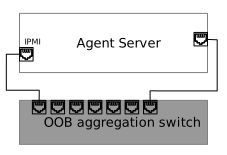
Section titled “Bare metal Site Controller cabling”The following shows the Site Controller’s cabling if the Site Controller runs directly on a bare metal server. All ports of the OOB switch should be in the same L2 broadcast domain (VLAN).
Virtual Site Controller, layer 2 connectivity
Section titled “Virtual Site Controller, layer 2 connectivity”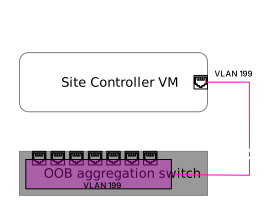
The Site Controller can also be hosted as a virtual machine if the layer 2 connectivity can be extended (same VLAN).
Virtual Site Controller, layer 3 connectivity
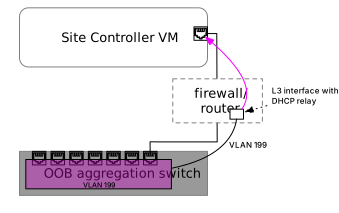
Section titled “Virtual Site Controller, layer 3 connectivity”The following shows the Site Controller’s connectivity if the Site Controller runs as a VM in some remote virtualization cluster and there is no direct layer 2 connectivity. In this case, the Site Controller is connected via a firewall or router or some other form.
This setup is often used to enforce firewall rules on the Site Controller in order for example to separate the switch management network from the server management network.
To enable ZTP a DHCP relay configuration is required on the firewall or router appliance that will take the DHCP traffic from the server or switch management interfaces to the Site Controller’s embedded DHCP server.
Deploying and configuring the site Controller
Section titled “Deploying and configuring the site Controller”1. Creating the site record
Section titled “1. Creating the site record”Sites are the root object for almost all elements that MetalSoft operates with.
To create a site using the UI go to Sites > Create new site button:
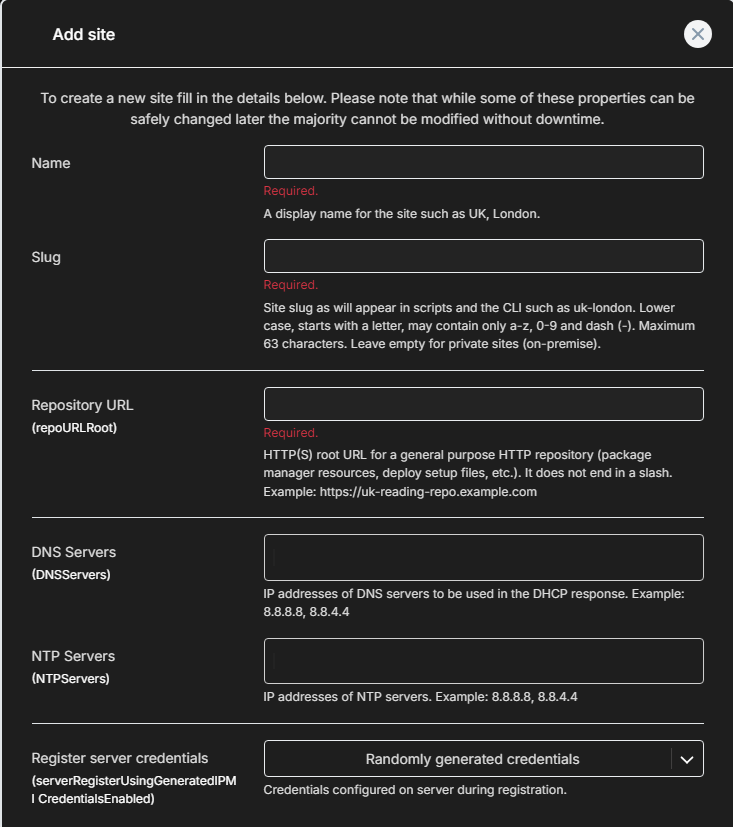
We recommend a minimum of two NTP servers and two DNS Servers due to requirements of some OS installations.
2. Installing the Site Controller docker images
Section titled “2. Installing the Site Controller docker images”-
Copy the one-liner command
Log into the Global Controller, click on Sites and click on the Site name. Click on Site controller configuration. Select the capabilities and click on Generate command.
This will produce a one-line output, which can be pasted on a newly provisioned clean Site Controllers VM or bare metal installation (Ubuntu LTS 22.04+ or RHEL 9.X), and will install all needed packages and configure the
agents.Copy the command to your clipboard.
-
Run the command on Site Controller
By running the one-liner on the Site Controller, you are registering the Site Controller with the Site on the Global Controller.
Once this is completed, you can log into the Admin UI of the Global Controller and click on Sites on the left, then the Site name and click on Site controllers to check all are showing as Connected.
3. Check Connectivity
Section titled “3. Check Connectivity”Once the Global and Site Controllers are set up, you can run a connectivity check by running the following on the first node of the Global Controller:
https://repo.metalsoft.io/extra/ms-prerequisite-check
Example:
ms-prerequisite-check site-operate global-controller-hostname=demo.metalsoft.io