

Enabling two factor authentication (2FA) in Metalcloud
Multi-factor authentication is an optional protection mechanism that greatly improves the security of your account against stolen credentials, phishing attacks, etc.
-
Make sure you are logged into your account.
-
Navigate to Account Settings. Alternatively, go to Infrastructure Designer > Account Settings.
-
Click on 2FA Authenticator and then
Enable 2FA.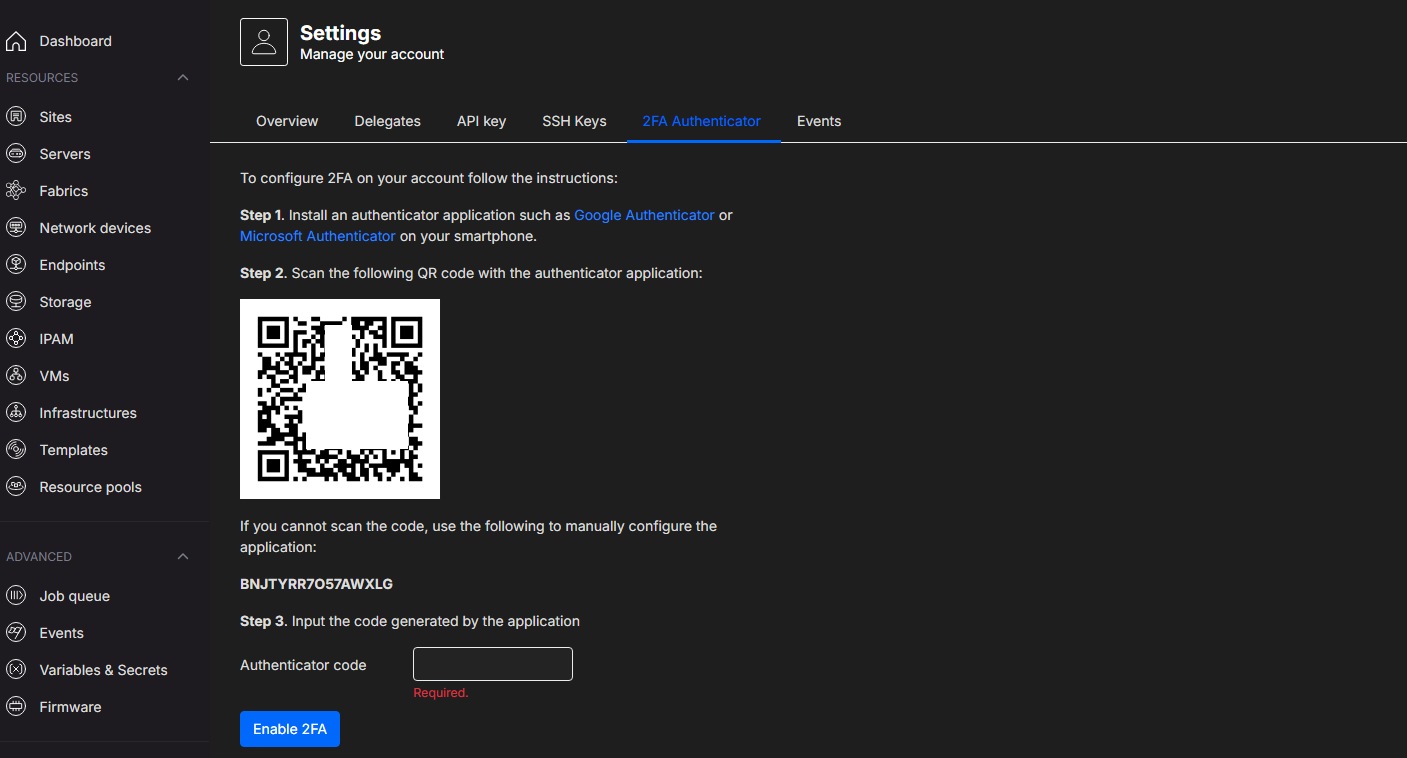
-
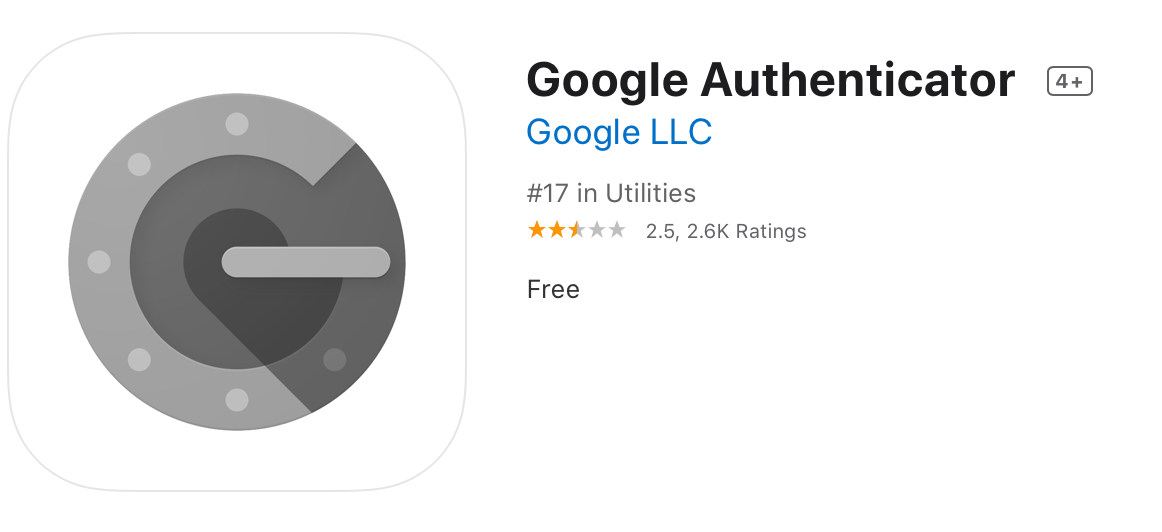
Install one of the authenticator applications on your smartphone. MetalSoft recommends Google Authenticator.
 {w=200px align=center}
 -
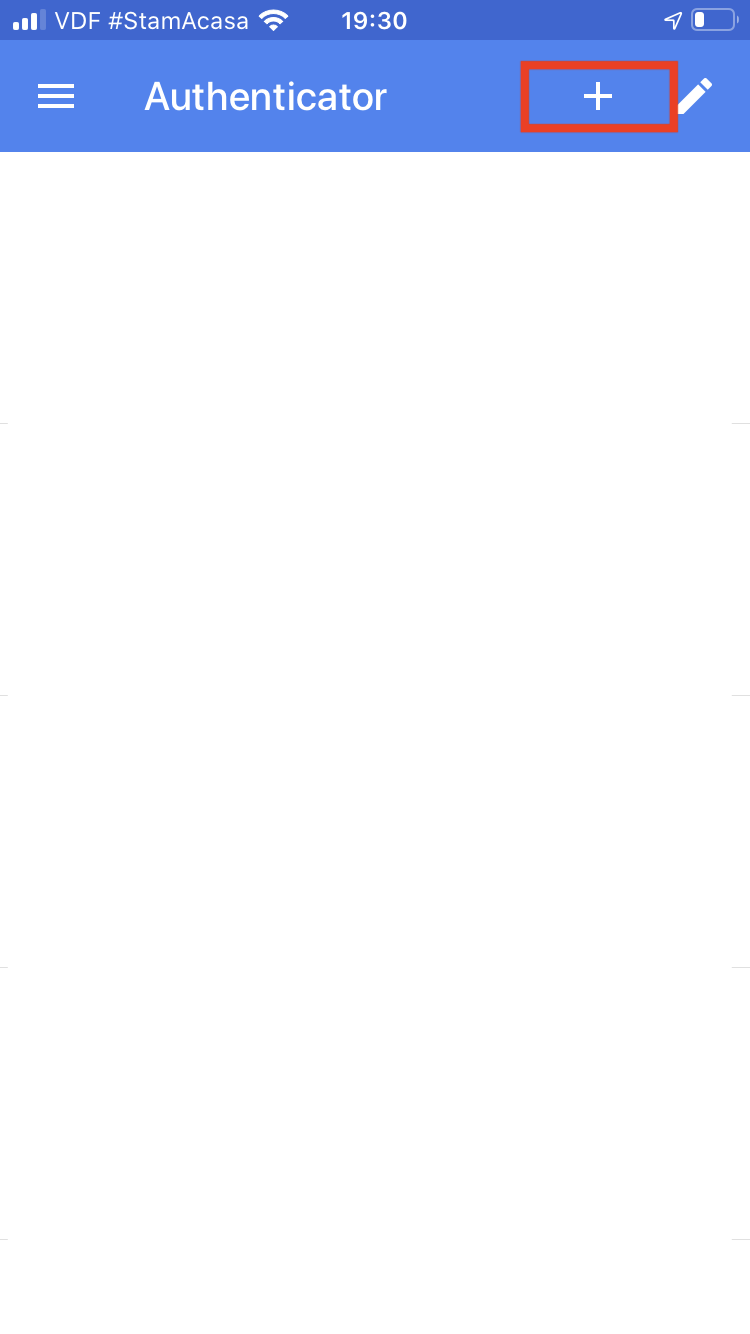
On your smartphone, open Google Authenticator, click on the ”+” button.
 {w=200px align=center}
 -
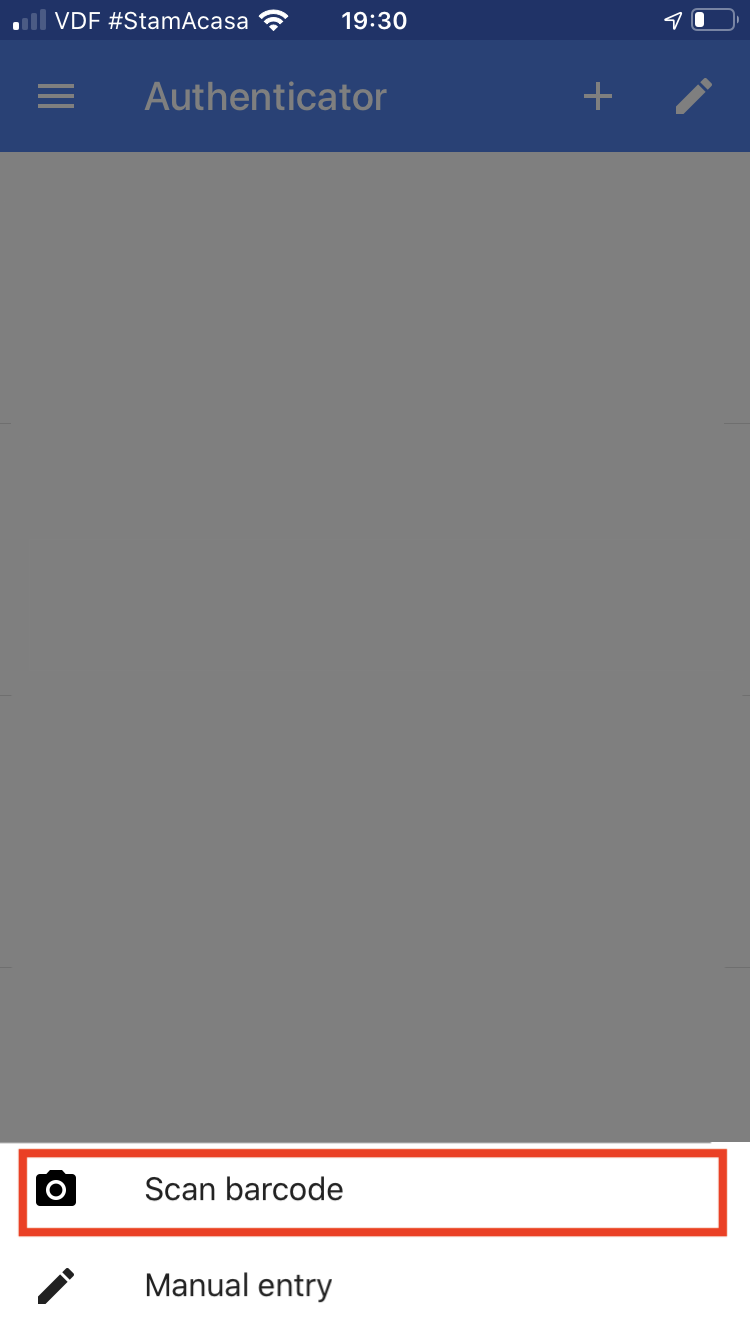
On your smartphone, in Google Authenticator, click on the “Scan barcode” button.
-
On your smartphone, in Google Authenticator scan the barcode on the screen.
-
On your smartphone, in Google Authenticator identify the number generated by the two factor auth. Note that these expire quickly.
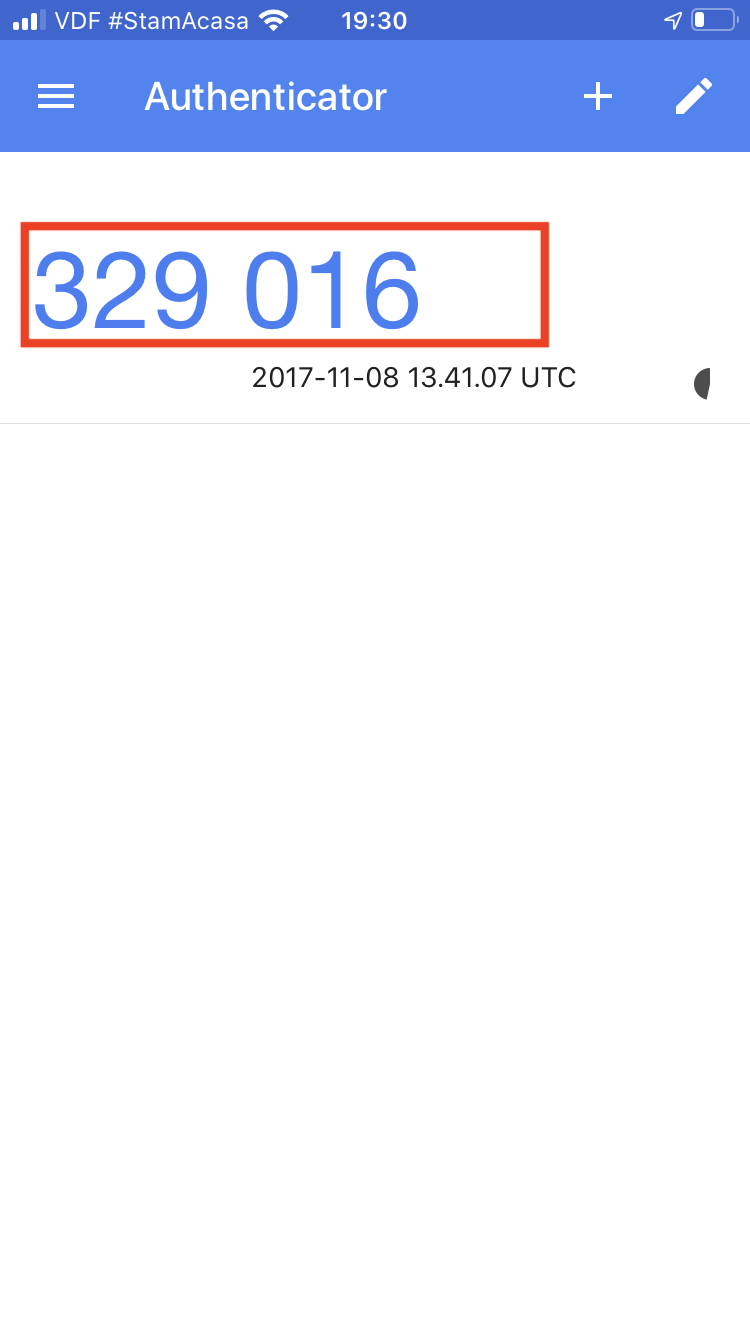 {w=200px align=center}
 -
Scroll down on the authenticator page and enter your password and the number generated by the authenticator.
2FA is now enabled on your account. Every time you log in, MetalSoft requires you to enter the number generated by the application.
If you have lost your smartphone or need to reset the authenticator for any reason, use the Authenticator Reset link.