

Managing drive arrays
Drives are iSCSI based block devices attached to servers at runtime. They can be operating system drives or unformatted drives.
Drive arrays are collections of identical drives that users can control as a single entity.
Creating a drive array using the UI
Section titled “Creating a drive array using the UI”There are multiple ways to create a drive array from the Infrastructure Designer:
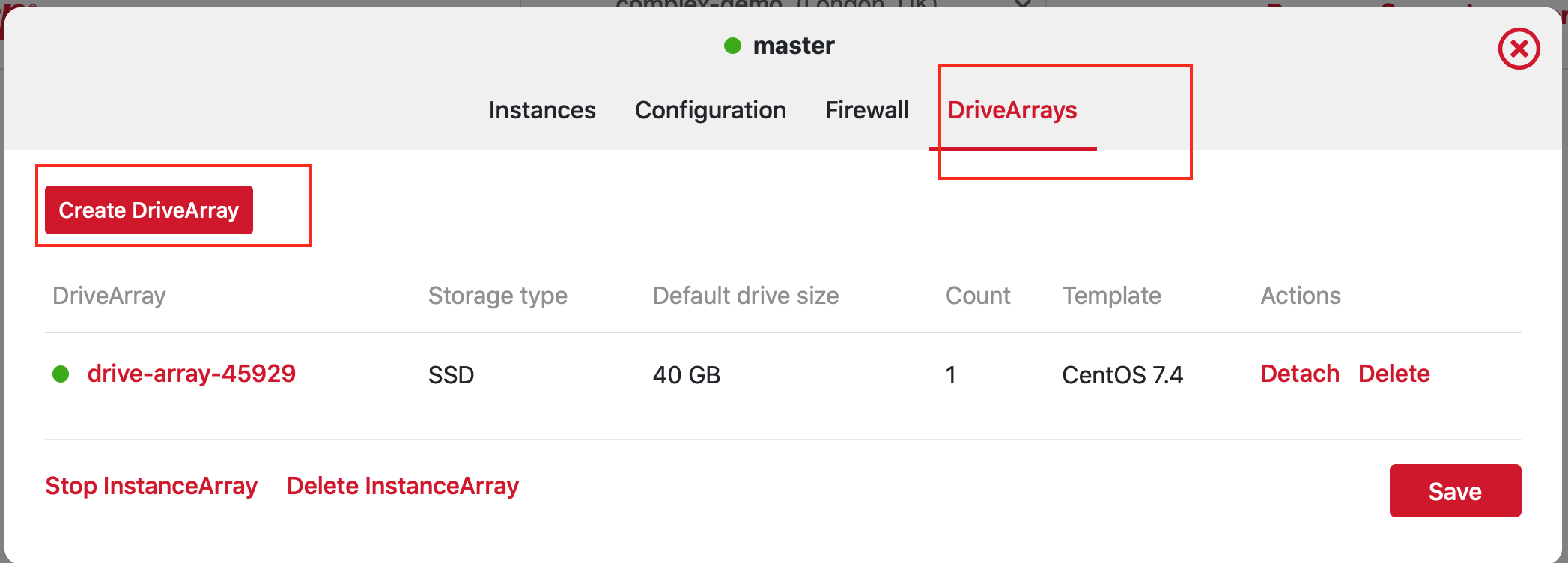
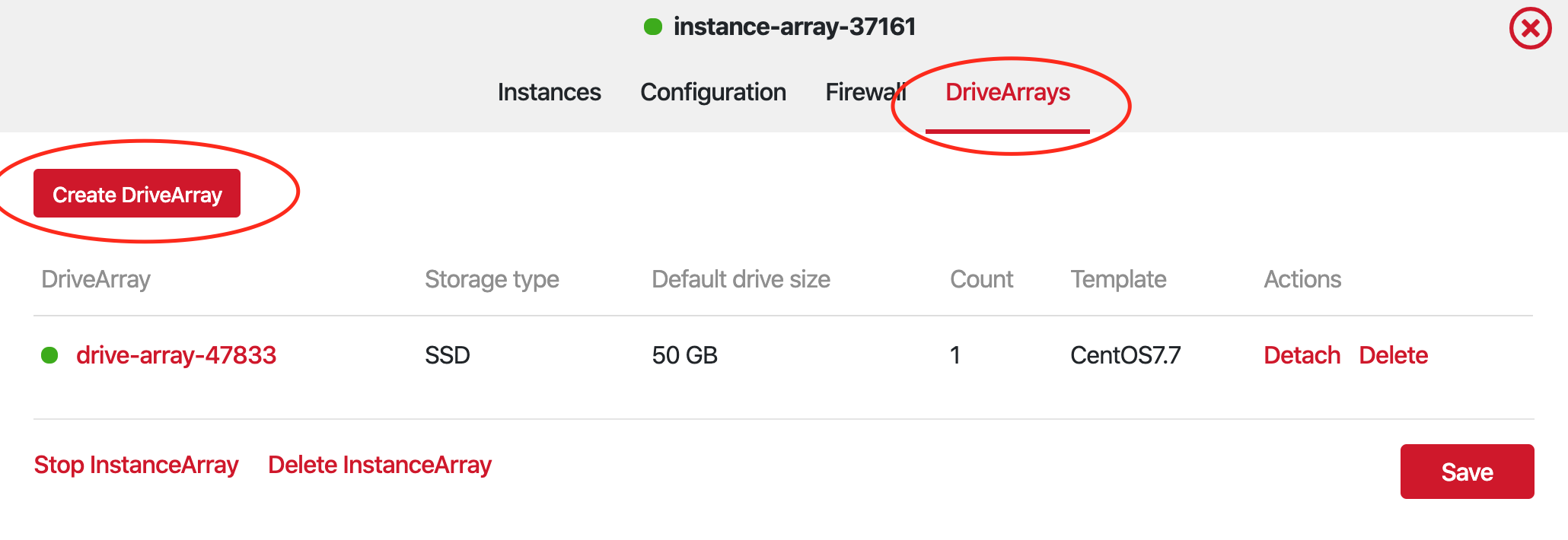
- Click an instance array and go to the DriveArrays tab.
- Click the Create DriveArray button.
Listing drive arrays of an instance array using the UI
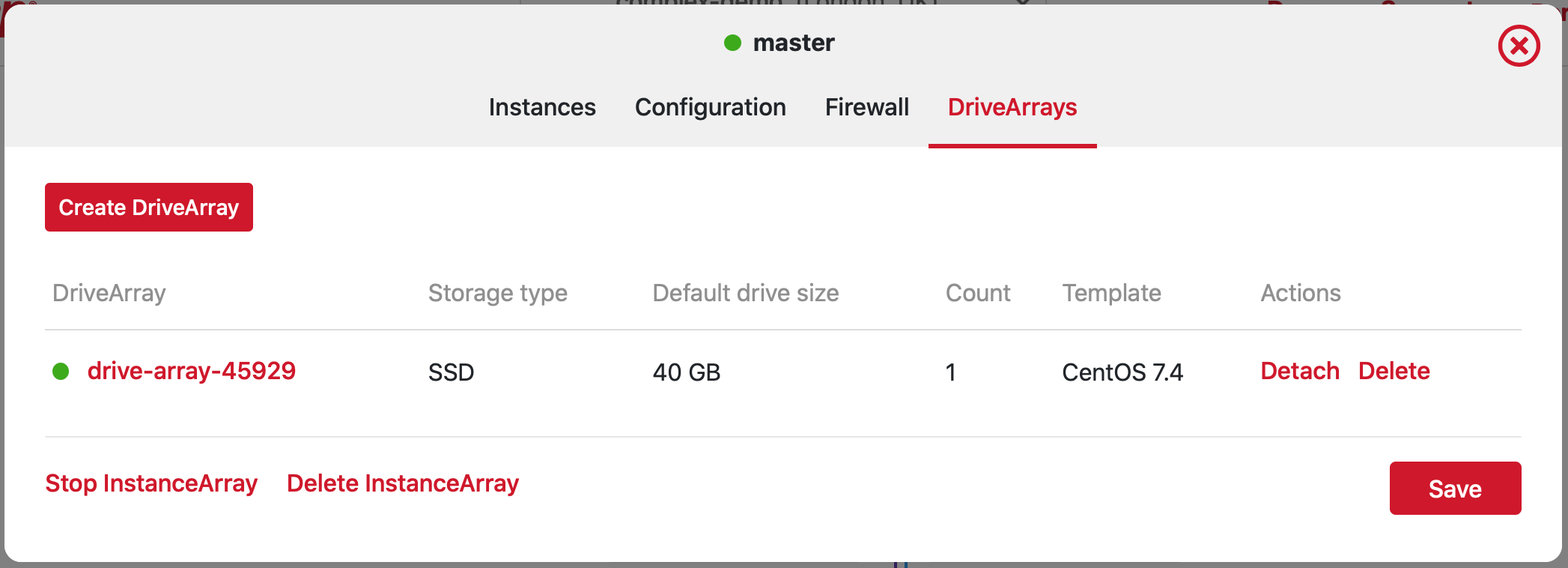
Section titled “Listing drive arrays of an instance array using the UI”- Click an instance array and go to the DriveArrays tab.
Adding a new drive
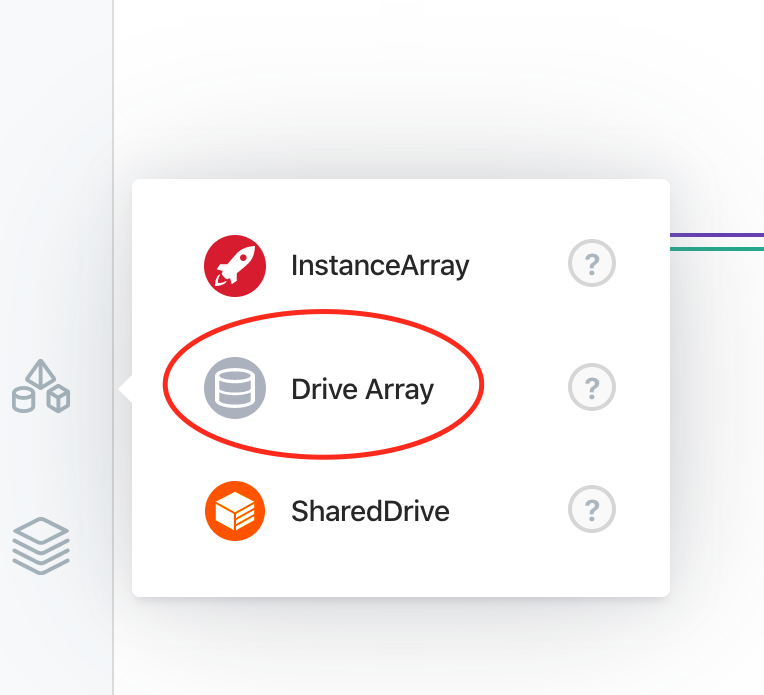
Section titled “Adding a new drive”- In the Infrastructure Designer, click the Infrastructure button on the left bar and select Drive Array.
- The new Drive Array is now visible in the interface.
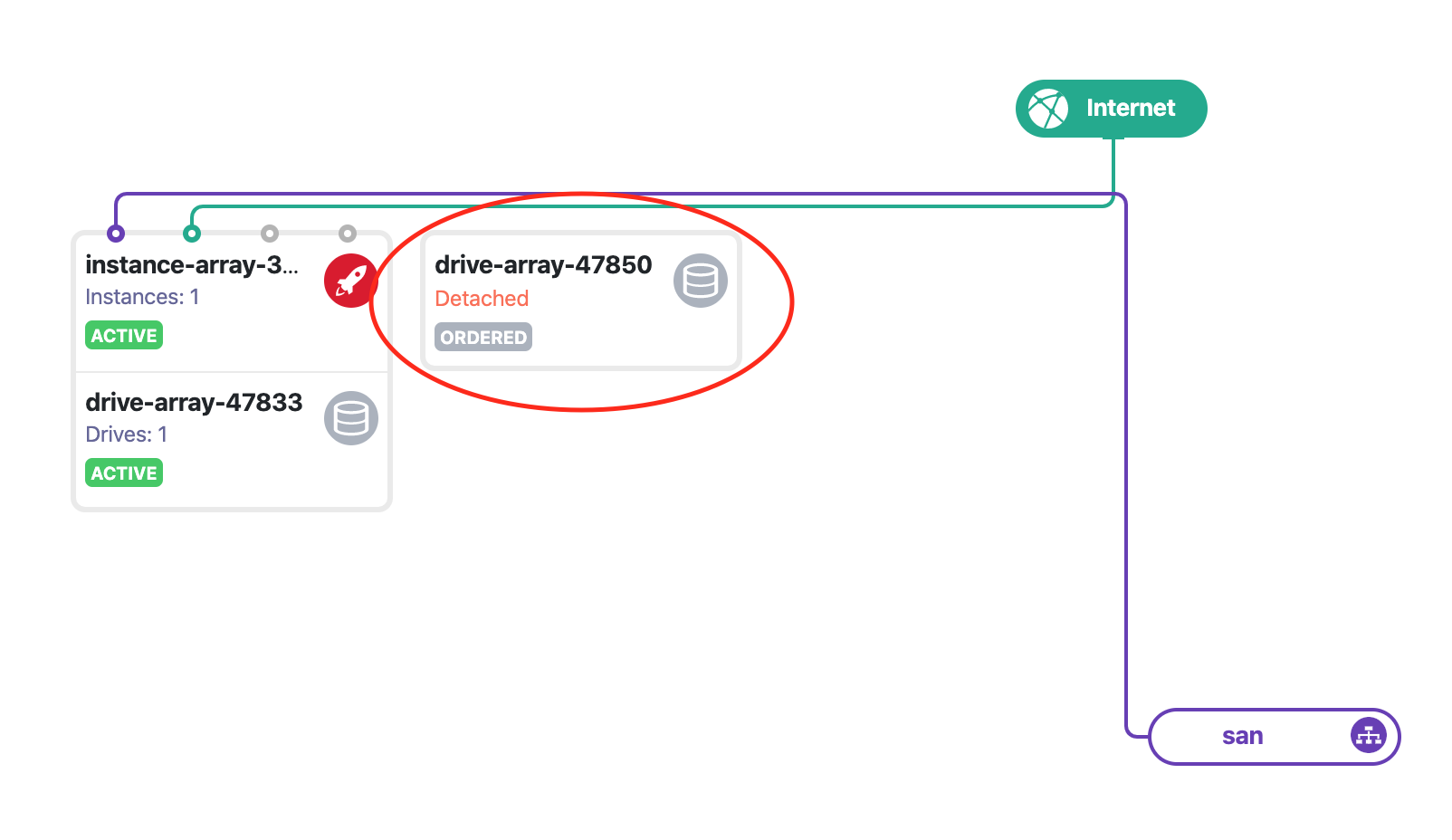
- Click the new Drive Array to customize it. You can tweak the size, storage type, operating system template, file system, and block size, as well as attach it to an existing Instance Array or Container Array. You can also attach it to an array by dragging and dropping it in the interface.
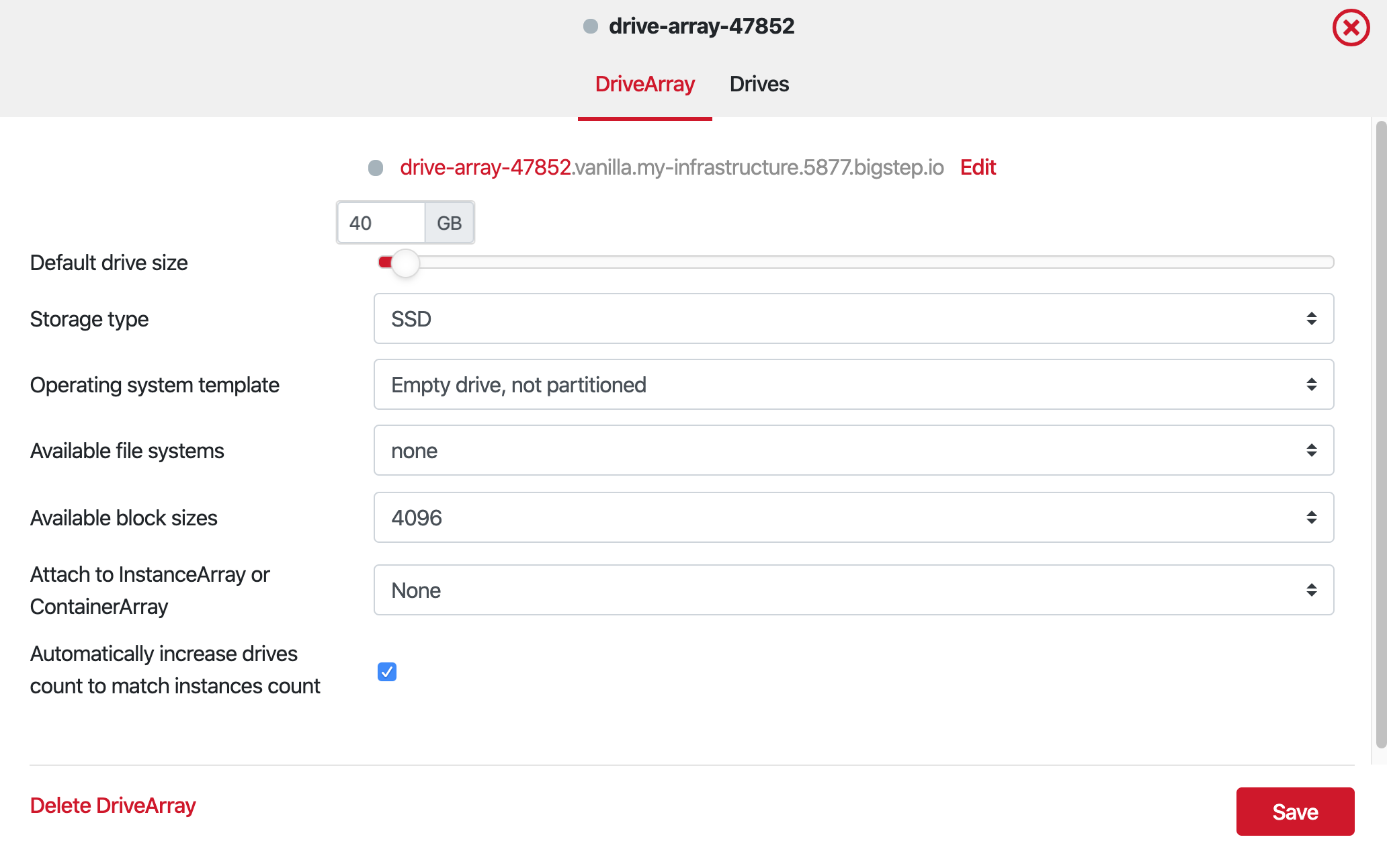 4. An alternative way to create a Drive Array is from the Instance Array overview, in the DriveArrays tab. Click Create DriveArray and MetalSoft attaches a new one to the server, with default settings. You can customize the Drive Array by clicking its icon in the interface.
 5. After configuring and attaching the drive, click Deploy Changes to make it active.
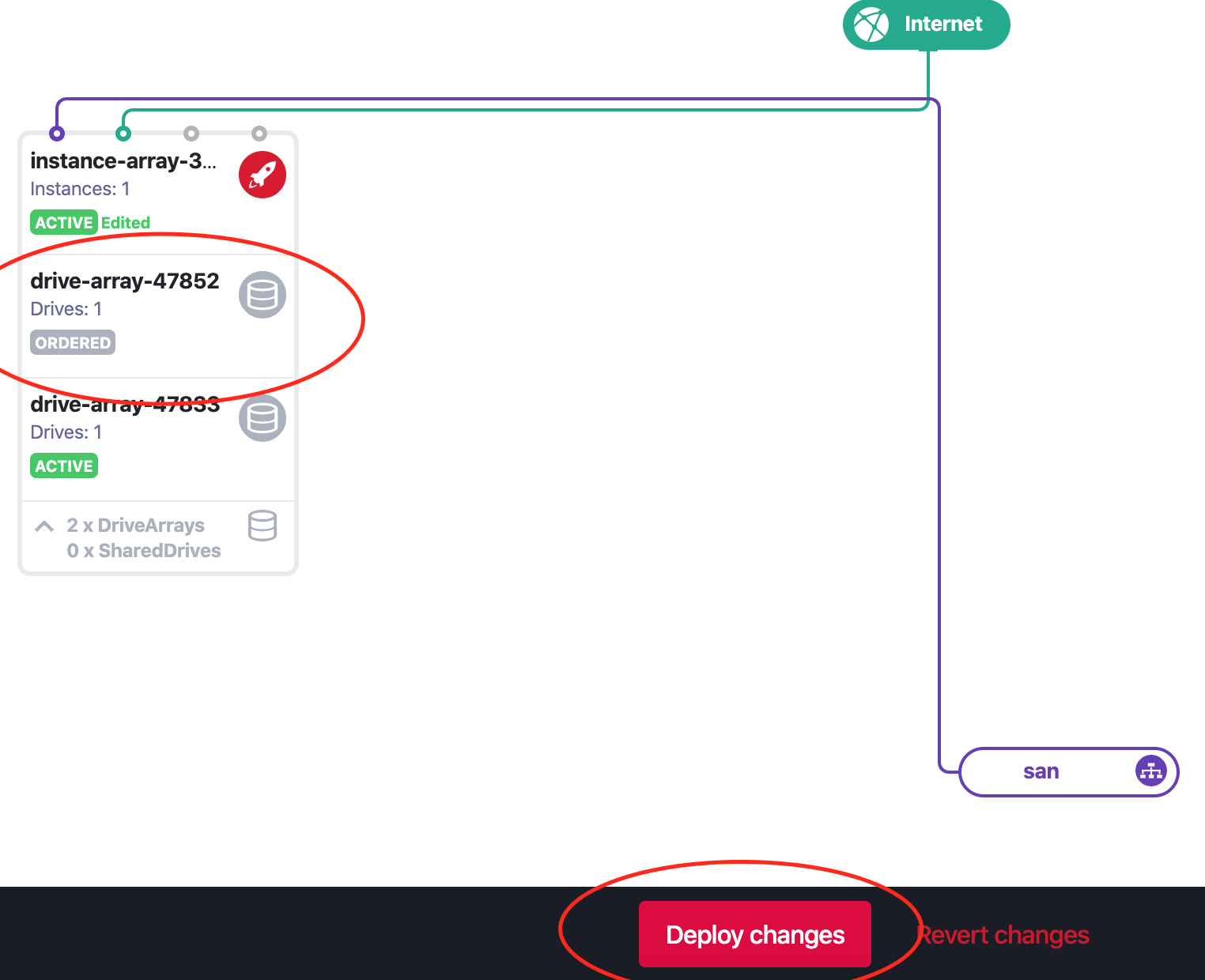
- The new disk attaches to your server after the deploy. A server reboot may be needed, as well as additional configuration from your operating system, before you can use it.
Removing a drive
Section titled “Removing a drive”-
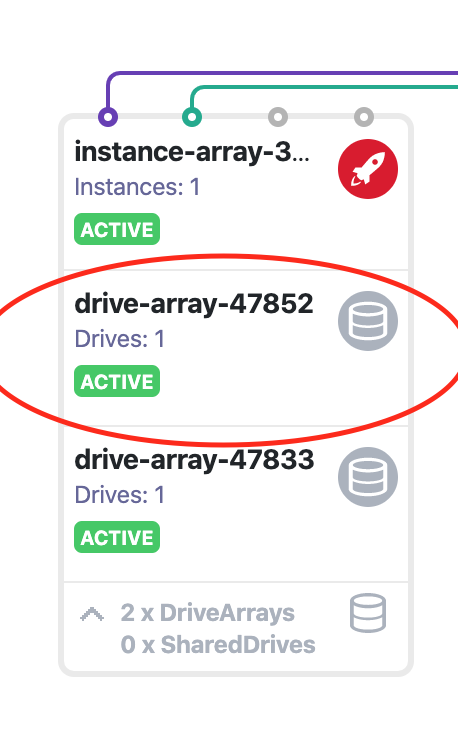
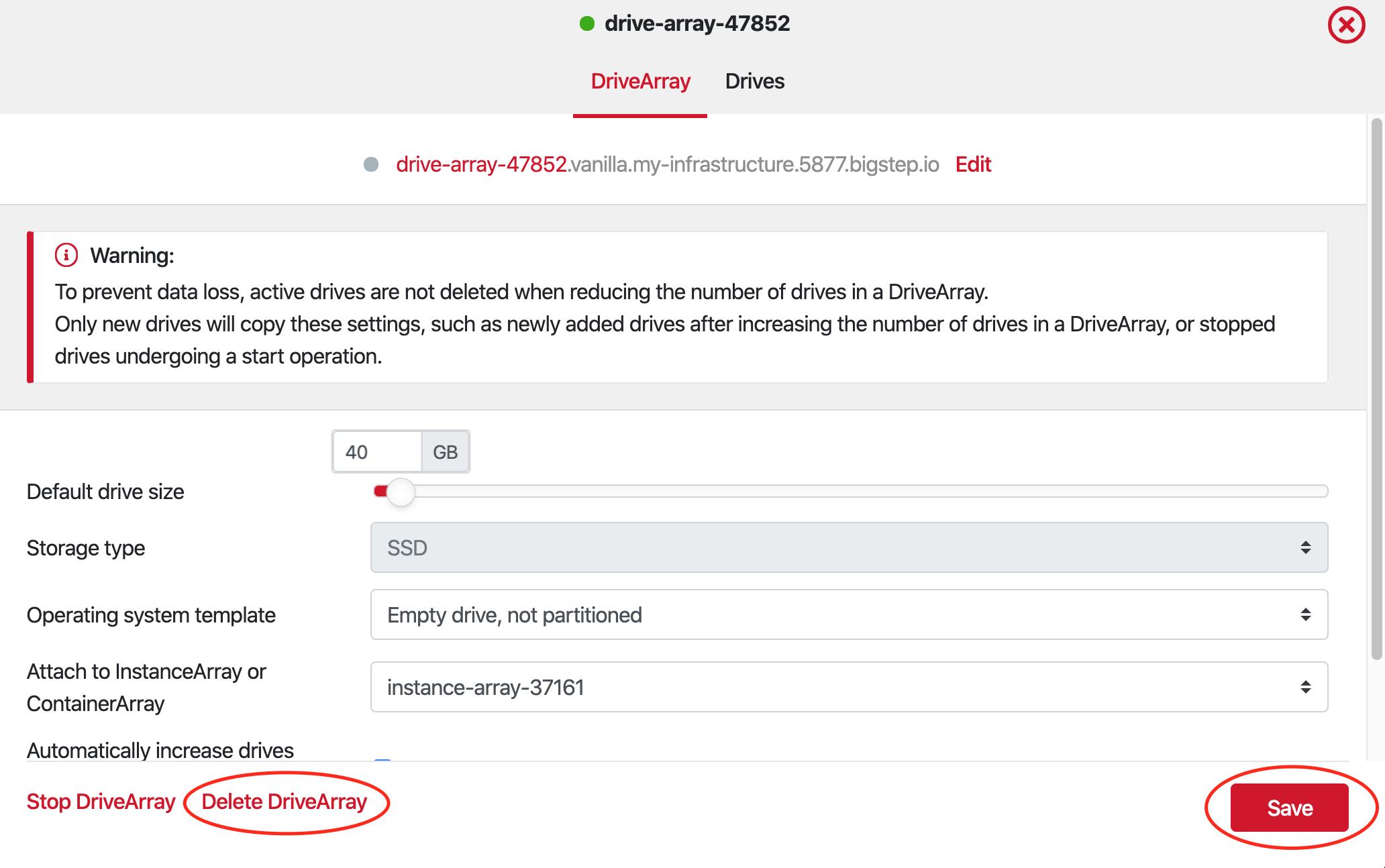
To delete an existing Drive Array, click its icon in the infrastructure designer.
-
Click Delete DriveArray.
-
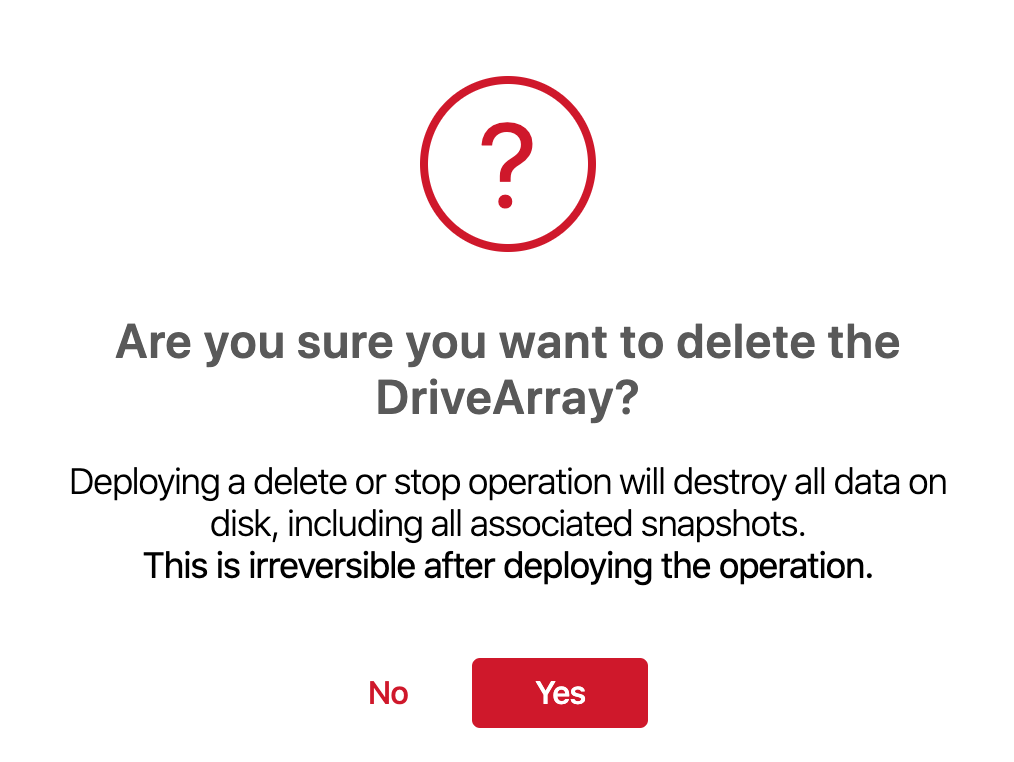
Confirm that you want to delete the drive.
-
Click Deploy Changes in the infrastructure designer.
-
As a safety measure, MetalSoft warns you about data loss. To confirm, type destroydata before the deploy starts.

-
The drive is deleted at the end of the deploy.
Expanding disk size
Section titled “Expanding disk size”-
From the infrastructure designer, click the DriveArray you want to change the Drive size of. This opens the DriveArray overview panel.

-
Drag the Default drive size slider to increase its capacity, or type the desired size in GB. It is not possible to reduce the size of a drive, since this is a risky operation on most operating systems.

-
Click Save, then Deploy changes.
-
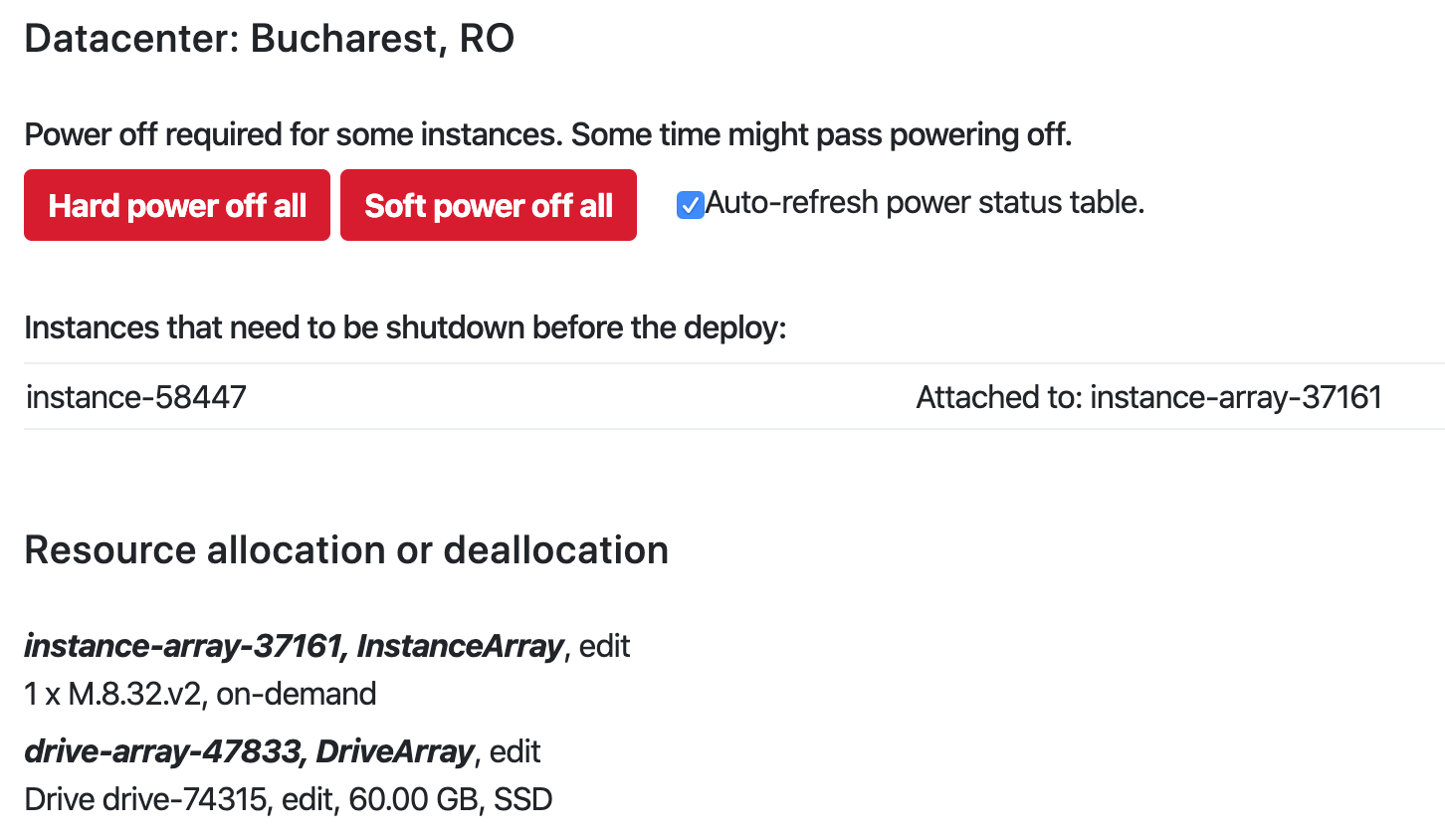
Resizing a disk requires that the server is powered off. If any affected servers in the infrastructure are still powered on, MetalSoft prompts you to Hard power off or Soft power off them before the deploy. MetalSoft recommends the Soft power off option.
-
The resized disk is available after the deploy. Depending on the operating system on your server, additional configuration may be required.
Creating a drive array using the CLI
Section titled “Creating a drive array using the CLI”metalcloud-cli drive-array create --ia gold --infra complex-demo --size 100000 --label daTo make a drive array accessible, push the Deploy changes button in the UI, or run the following metalcloud-cli command:
metalcloud-cli infrastructure deploy --id complex-demoor
metalcloud-cli infrastructure deploy --id complex-demo --autoconfirmTypically, drive arrays expand with their instance array. To stop that from happening, use -no-expand-with-ia.
Listing drive arrays of an infrastructure using the CLI
Section titled “Listing drive arrays of an infrastructure using the CLI”$ metalcloud-cli drive-array list --infra complex-demoDrive Arrays I have access to as user alex.@d.com:+-------+-------------------------------+-----------+-----------+-----------+-------------------------------+-----------+--------------------------+| ID | LABEL | STATUS | SIZE (MB) | TYPE | ATTACHED TO | DRV_CNT | TEMPLATE |+-------+-------------------------------+-----------+-----------+-----------+-------------------------------+-----------+--------------------------+| 47859 | da | ordered | 100000 | iscsi_ssd | gold (#37135) | 1 | || 45928 | drive-array-45928 | active | 40960 | iscsi_ssd | workers (#35516) | 2 | CentOS 7.4 (#78) || 45929 | drive-array-45929 | active | 40960 | iscsi_ssd | master (#35517) | 1 | CentOS 7.4 (#78) || 47799 | gold-da | ordered | 100000 | iscsi_ssd | gold (#37135) | 1 | || 47858 | test | ordered | 40960 | iscsi_ssd | | 1 | |+-------+-------------------------------+-----------+-----------+-----------+-------------------------------+-----------+--------------------------+Total: 5 Drive ArraysAll the drive arrays with status ordered are not yet accessible.
Deleting a drive array via the CLI
Section titled “Deleting a drive array via the CLI”To delete a drive array, use
metalcloud-cli drive-array delete --id 47859